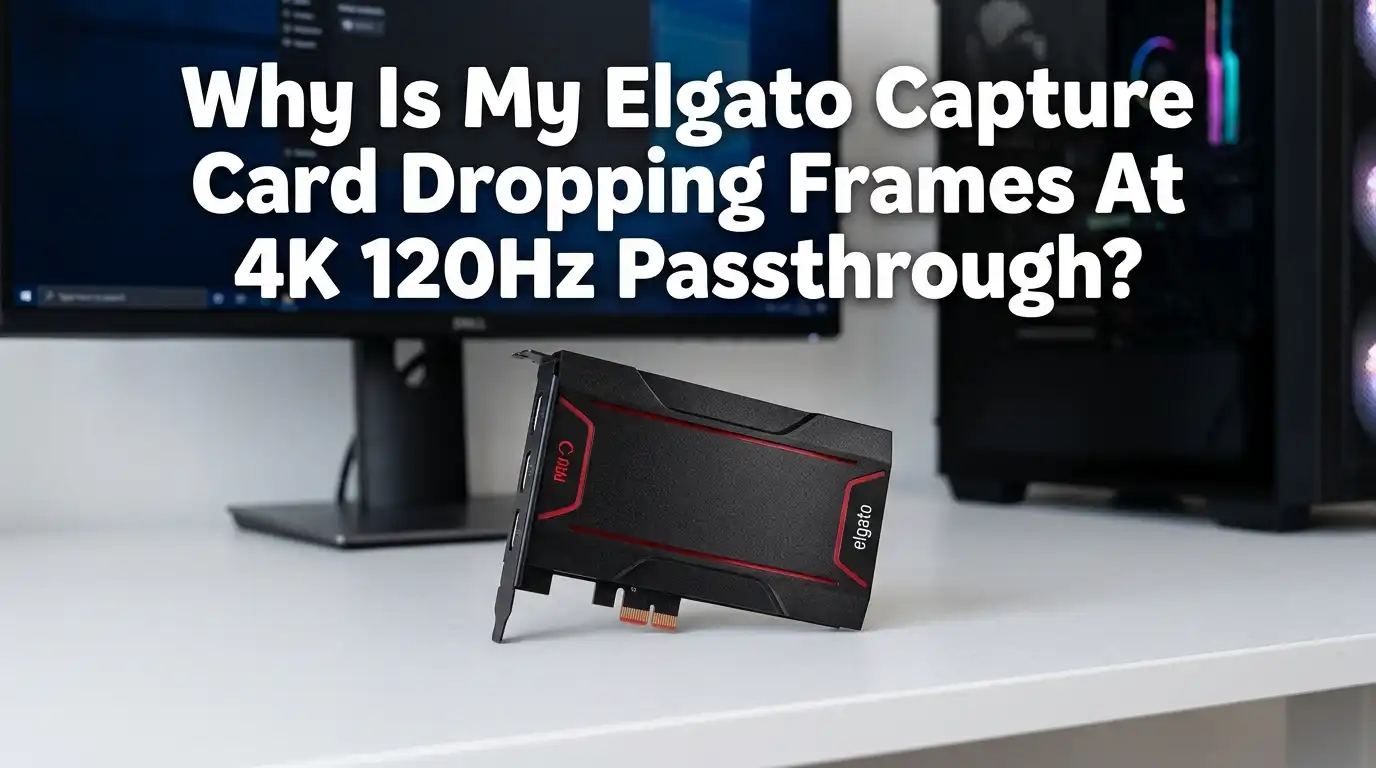
Why Is My Elgato Capture Card Dropping Frames At 4K 120Hz Passthrough?
You sit down to record a smooth 4K 120Hz session. You hit play. Then the picture stutters, tears, or drops frames right in front of your eyes. It feels frustrating, and it makes your gameplay look choppy.
The good news is simple. Most 4K 120Hz passthrough frame drops come from fixable causes. This guide walks you through every reason your Elgato capture card struggles, and it gives you clear steps to fix each one.
You will learn how bandwidth, cables, ports, and settings all play a role. By the end, you will know exactly where the problem lives and how to solve it fast.
In a Nutshell:
- 4K 120Hz needs HDMI 2.1. Only the Elgato 4K X and 4K Pro support this passthrough. Older cards like the HD60 X or 4K60 Pro MK.2 cannot pass a true 4K 120Hz signal.
- Passthrough and capture are different. Your card can pass through 4K 120Hz to your monitor while it records at a lower setting. This split is normal and not always a bug.
- Cables matter more than you think. A cable that is not certified for 48Gbps will cause dropped frames, black screens, and signal loss at 4K 120Hz.
- USB bandwidth is the hidden bottleneck. The 4K X connects over USB. The port speed limits what you can capture, so a slow or shared port causes stutter.
- EDID and firmware settings fix many issues. Switching the EDID mode to Display and updating firmware solves a large share of handshake problems.
- DSC and HDR can break capture. Display Stream Compression and HDR signals confuse some setups, so lowering the resolution often restores a clean feed.
Understanding What 4K 120Hz Passthrough Really Demands
A 4K 120Hz signal carries a huge amount of data. It needs around 48Gbps of bandwidth to move cleanly. That is the full HDMI 2.1 limit.
Every part of your chain must support this speed. Your console or PC sends the signal first. Your capture card receives it next. Then your monitor displays it last.
If any link in this chain falls short, you get dropped frames. Your weakest device sets the ceiling for the whole setup. A 4K 120Hz signal is not the same as 4K 60Hz. It carries twice the frames each second. This is why a card built for older HDMI standards simply cannot keep up, no matter how you tweak it.
Confirm Your Elgato Card Actually Supports 4K 120Hz
This is the first thing to check. Not every Elgato card can handle 4K 120Hz. Only two models support this signal: the Elgato Game Capture 4K X and the Elgato Game Capture 4K Pro. Both use HDMI 2.1 ports built for high bandwidth.
Other popular cards cannot do it. The HD60 X, the 4K60 Pro MK.2, and the 4K S use HDMI 2.0 or lower. They top out at 4K 60Hz or 1440p 120Hz for passthrough. If you own one of these and expect a clean 4K 120Hz feed, the card itself is the limit.
Check your model name on the device or in the 4K Capture Utility. Knowing your exact card saves you hours of pointless troubleshooting.
Why Passthrough And Capture Are Not The Same Thing
Many users panic when they see different numbers. Your monitor shows 4K 120Hz, but your recording looks lower. This confuses a lot of people. The truth is calm and simple. Passthrough and capture run on separate paths.
Passthrough sends the signal straight to your monitor at full quality. Capture sends a copy to your computer for recording. The capture path runs over USB, which has its own speed limit.
On the 4K X, you can pass through 4K 120Hz while you record at 4K 60Hz or 1440p 120Hz. This is by design, not a fault. So if your monitor looks smooth but your file is lower, your card is working as built. Real frame drops show as stutter or tearing on the screen itself.
The HDMI Cable Problem Most People Ignore
This is the most common hidden cause. A cheap or old HDMI cable cannot carry 4K 120Hz. You need an Ultra High Speed HDMI cable that is certified for 48Gbps. Many cables claim HDMI 2.1 but fail under load. They drop frames, flash black, or lose signal.
Always use a certified Ultra High Speed cable on both the input and output ports. Test by swapping in a known good cable. If your frame drops vanish, the cable was the culprit.
Pros and cons of upgrading your cable:
- Pro: It is the cheapest and fastest fix to try first.
- Pro: A good cable solves many black screen and stutter issues at once.
- Con: Cable labels often lie, so an uncertified cable may still claim full support.
- Con: Very long cables can lose bandwidth, so keep runs short for safety.
Check Your USB Port Speed And Connection
The 4K X connects to your computer over USB. This connection sets a hard limit on what you can capture. A standard USB 3.0 port runs at 5Gbps. The 4K X can also use a faster 10Gbps mode on supported ports. The faster the port, the higher the capture quality you can record.
If you plug the card into a slow port, a hub, or a front panel jack, you invite dropped frames. Always connect directly to a rear USB port on your motherboard.
Avoid USB hubs and extension cables. On a Mac, you can enable the 10Gbps mode inside the 4K Capture Utility settings. Check your port type in your system info. A 10Gbps port unlocks higher capture resolutions and smoother frames. This single change fixes many stutter complaints.
Switch Your EDID Mode To Fix Handshake Issues
Sometimes your devices fail to agree on a signal. This handshake problem causes flicker, drops, or no high refresh rate at all. The fix lives inside the 4K Capture Utility. You change the EDID mode.
Here are the steps to follow:
- Open the 4K Capture Utility software.
- Click the cog icon at the top right to open settings.
- Go to the Device tab.
- Open the EDID Mode dropdown and choose Display.
- Click Apply and then OK.
Your screen may flash for a second. This is normal during the switch. The Display mode tells your console to match your monitor exactly. After this, check if your high refresh rate works. This step alone solves a large share of frame drop reports, especially when 120Hz refuses to appear.
Update Your Firmware And Capture Software
Outdated software causes silent problems. Elgato pushes firmware updates that improve stability and add features. For example, Ultra Wide support arrived in a firmware update. Running old firmware means you miss fixes for known frame drop bugs.
Open the 4K Capture Utility and look for an update prompt. Install any pending firmware for your card. Also update the capture software itself, and update OBS if you use it. Fresh drivers and firmware remove many stutter issues at once.
Pros and cons of updating regularly:
- Pro: Updates often fix the exact bugs causing your drops.
- Pro: New firmware can raise supported resolutions and frame rates.
- Con: A rare update may introduce a new issue, so note your current version first.
- Con: You must reconnect and restart the card, which takes a few minutes.
Watch Out For Display Stream Compression (DSC)
This cause is sneaky and easy to miss. Display Stream Compression squeezes high resolution signals into less bandwidth. Some early HDMI 2.1 monitors use DSC to reach 4K 144Hz. The Elgato 4K X cannot capture a signal that uses DSC.
Here is the classic sign. Your monitor shows the picture fine through passthrough, but your captured video turns black or drops frames. That black capture screen points straight at DSC.
The fix is to lower your resolution or frame rate so DSC turns off. For example, drop from 4K 144Hz to 4K 120Hz, which often runs without compression. Test one step down at a time until your capture comes back clean. This small change saves a lot of confusion.
Handle HDR The Right Way
HDR adds rich color, but it also adds strain. The 4K X passes through HDR10 video, yet it captures HDR at limited settings. On Windows, you need an NVIDIA 10 series GPU or newer to record 10 bit HDR, and that file uses the HEVC format.
The card can only capture HDR at lower combinations, such as 4K 30Hz or 1440p 60Hz in HDR. If you push 4K 120Hz with HDR turned on for capture, you may see drops or failures. On a Mac, HDR capture is not available at all, so the card converts HDR to SDR before recording.
Pros and cons of recording with HDR:
- Pro: HDR gives you brighter highlights and deeper color in your footage.
- Pro: Passthrough HDR still looks perfect on your monitor while you play.
- Con: HDR capture forces a lower resolution or frame rate.
- Con: It needs specific hardware, so older GPUs cannot record it.
Lower Your Capture Settings To Match Your Hardware
Sometimes the smartest fix is to ask for less. Your hardware has real limits, and pushing past them causes drops. If your USB port runs at 5Gbps, you cannot capture the highest formats smoothly. Match your capture target to what your port and card allow.
Try these adjustments inside your software:
- Drop capture from 4K 120Hz to 4K 60Hz while keeping passthrough at full speed.
- Choose 1440p 120Hz capture if you want both high frames and smooth recording.
- Lower the bitrate or codec quality if your storage drive struggles.
A lower capture setting keeps your passthrough crisp while it removes stutter from your recording. You still play and watch at full 4K 120Hz on your monitor. You only trade some recording quality for a stable, drop free file. This balance works well for most streamers.
Free Up Your PC Resources And Storage Speed
Your computer does heavy work during capture. A busy CPU, full RAM, or slow drive all cause dropped frames. Capture software needs steady resources to keep up with a 4K signal. Background apps steal that power.
Close every program you do not need before you record. Use a fast SSD as your recording drive, never a slow hard drive. A 4K file grows large and fast, so your drive must write quickly. Check your CPU and disk usage while you capture.
Pros and cons of optimizing your PC:
- Pro: Closing apps gives instant relief and costs nothing.
- Pro: An SSD prevents write bottlenecks that cause stutter.
- Con: A weak CPU may still struggle even after cleanup.
- Con: Fast drives with high capacity cost more money.
When The Card Is The Limit: Knowing Your Real Options
Sometimes you do everything right and drops remain. This means your hardware has reached its true ceiling. The 4K X captures 4K 120Hz only without HDR, and only over a fast USB port. The card simply cannot do every combination at once.
Accept what your card can do and plan around it. Pick the one setting that matters most to you, whether that is resolution, frame rate, or HDR. You cannot max all three at the same time on this hardware.
For pure flexibility, the 4K Pro uses a PCIe slot inside your PC, which removes the USB limit. Decide based on your real goal. Matching your expectations to your gear ends most frustration for good.
Frequently Asked Questions
Can the Elgato HD60 X capture 4K 120Hz?
No. The HD60 X cannot pass through or capture a true 4K 120Hz signal. It uses an older HDMI standard. It does support 1080p 120Hz and 1440p 120Hz passthrough, but it tops out at 4K 60Hz for high resolution work. For 4K 120Hz, you need the 4K X or 4K Pro.
Why does my monitor show 120Hz but my recording does not?
This is normal behavior. Passthrough and capture run on separate paths. Your monitor gets the full signal directly, while your recording travels over USB at a lower setting. The 4K X can pass through 4K 120Hz while it records at 4K 60Hz. Your file looking different is by design, not a fault.
Does my HDMI cable really cause dropped frames?
Yes, very often. A cable that is not certified for 48Gbps cannot carry 4K 120Hz cleanly. It causes flicker, black screens, and dropped frames. Always use a certified Ultra High Speed HDMI cable on both ports. Swapping in a known good cable is the fastest test you can run.
What is DSC and why does it break my capture?
DSC stands for Display Stream Compression. Some monitors use it to reach very high resolutions. The 4K X cannot capture a DSC signal, so your recording turns black even when your monitor looks fine. Lower your resolution or frame rate to turn off DSC and restore a clean capture.
Will updating firmware fix my frame drops?
It often helps. Elgato releases firmware updates that fix bugs and improve stability. Outdated firmware can cause stutter and signal issues. Open the 4K Capture Utility, install any pending update, and restart the card. Keeping firmware and software current removes many common problems.
Can I record 4K 120Hz with HDR on at the same time?
No, not on the 4K X. The card captures HDR only at lower settings like 4K 30Hz or 1440p 60Hz. If you turn on HDR and push 4K 120Hz for capture, you will see drops. You can still pass through HDR to your monitor at full quality while you record in SDR.
Hi, I’m Minnie Cole, the creator of The Output Lab — a space where I share my passion for all things tech. I spend my days exploring the latest gadgets, devices, and electronics on Amazon, putting them through real-world testing so you don’t have to.