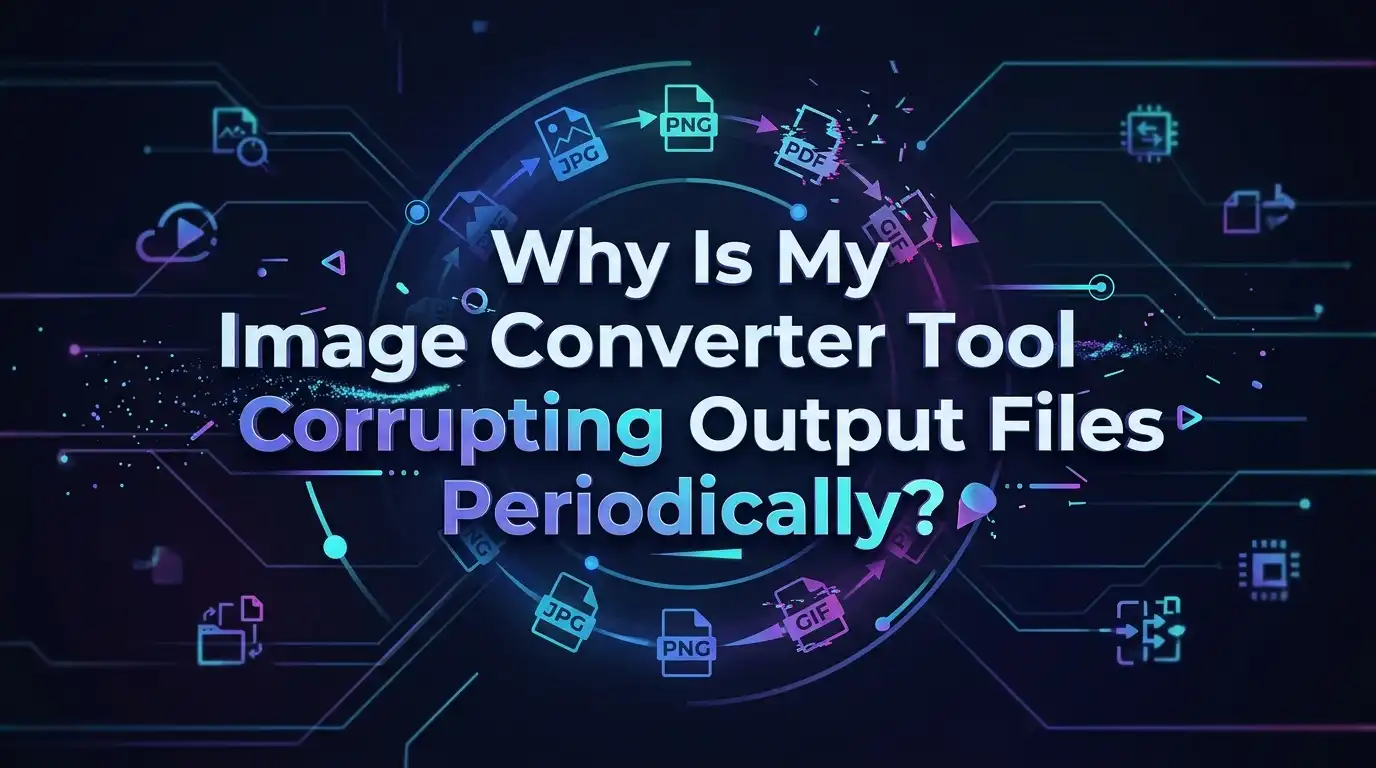
Why Is My Image Converter Tool Corrupting Output Files Periodically?
Have you ever converted a batch of photos, opened the new files, and found broken images staring back at you? You are not alone.
A converter that works fine one minute and produces garbage the next is one of the most frustrating tech problems around.
The output looks fine sometimes, then suddenly a file shows gray boxes, color stripes, or simply refuses to open. The pattern feels random, but it almost never is.
In a Nutshell:
- Periodic corruption usually points to a write problem, not the image itself. When your converter crashes or gets interrupted mid save, the file ends up incomplete. The header survives but the pixel data does not, so the file opens broken.
- Memory and disk limits are the top hidden culprits. Low RAM, a full drive, or a memory leak during batch jobs causes the tool to fail only after a certain number of files. This explains the “every few files” pattern many people see.
- Outdated software and broken codecs cause repeatable corruption. A buggy update or a missing decoder library can damage specific formats like TIFF, PNG, or CMYK files while leaving others untouched.
- Hardware faults create silent damage. Bad RAM sticks, failing SSDs, and dodgy USB cables corrupt data before it ever reaches the file. These problems feel random because they depend on which memory cell gets used.
- Most cases are fixable in minutes. Updating the tool, freeing space, converting in smaller batches, and testing your hardware solves the vast majority of corruption issues.
What File Corruption Actually Means
A digital image is more than just a picture. It is a structured file with a header, metadata, and a body of pixel data. The header tells your viewer how to read the rest. When any part of this structure breaks, the file becomes corrupt.
Corruption happens when the outer structure gets damaged or the data inside is incomplete. Your photo viewer tries to read the file, hits a section it cannot understand, and either shows a broken image or gives up entirely.
During conversion, your tool reads the source file, processes the pixels, and writes a brand new file. A failure at any of these three stages can break the output. Understanding this read, process, write cycle helps you find where things go wrong. Most periodic corruption traces back to the write stage, where the file gets cut off before it finishes.
Incomplete File Writes Are the Most Common Cause
The single biggest reason for corrupt output is an interrupted save. When your converter writes a file and the process stops early, you get a partial file. The first part looks fine, but the rest is missing or filled with junk.
An application that crashes while writing leaves the file half finished. Many programs write data in chunks, so a crash near the end ruins everything written so far.
To fix this, first watch whether the tool crashes during specific files. Try converting that one file alone. If it fails by itself, the source file may be the trigger. If it only fails inside a batch, the problem is resource related, which we cover next.
The pros of catching this early: you avoid wasting hours on bad output. The con: spotting the exact moment of failure takes patience and some trial conversions.
Low Memory and RAM Pressure During Batch Jobs
This cause explains the classic “every few hundred files” pattern. Many converters load each image into memory but fail to release it afterward. Memory usage climbs steadily until the system runs out, then the tool crashes or starts writing broken files.
This is called a memory leak, and it is extremely common in batch processing tools. Users report converters that handle 2,000 files fine, then fall apart at file 2,001.
The fix is simple. Break large jobs into smaller batches of 100 to 500 files. Restart the program between batches to flush memory. Close other heavy apps like browsers and video editors while you convert.
Pros of smaller batches: stable conversions and fewer crashes. Cons: more manual steps and slower overall throughput. For most people, the reliability gain is worth the extra clicks.
A Full or Nearly Full Disk Drive
Your converter needs free space to write each new file. When your drive fills up mid job, the tool cannot finish writing. The result is a string of partial, corrupt files.
Many tools throw an “insufficient disk space” error, but some fail silently and just produce broken output. This is why corruption can start appearing partway through a large batch.
Check your free space before converting. A good rule is to keep at least twice the total size of your output free. High resolution PNG and TIFF files can be huge, so plan for more than you expect.
Clear temporary files, empty your recycle bin, and move old data to another drive. Pros of this fix: it is fast and free. Cons: you may need to buy more storage if you convert large libraries regularly.
Outdated Converter Software and Buggy Updates
Software bugs cause some of the most repeatable corruption. A specific version of a tool may corrupt one format while handling others perfectly. Users have reported updates that suddenly produced broken PNG files after working fine for years.
A bad release can introduce a regression that damages output in predictable ways. This is not your fault, and it is not your hardware.
First, check whether the tool has a newer version. Update it and test again. If a recent update caused the problem, roll back to the previous stable version instead. Many tools keep older versions available for this reason.
Pros of updating: you get bug fixes and new format support. Cons: a fresh update can introduce new bugs. Always test a small batch after any update before trusting it with important files.
Missing or Broken Codec Libraries
Converters rely on codec libraries to decode and encode different formats. When a codec is missing, outdated, or corrupt, your tool cannot read or write that format properly. The output ends up damaged or refuses to open.
This often shows up as corruption in only one format, like CMYK TIFF or a specific video derived image. Other formats convert fine, which makes the problem look random until you spot the pattern.
The fix depends on your tool. For some programs, deleting the codec folder forces a fresh download of clean codecs on the next launch. For others, you reinstall the codec pack or update the underlying image library.
Pros of reinstalling codecs: it solves format specific corruption cleanly. Cons: finding the right codec source takes a little research, and the wrong pack can make things worse.
Faulty RAM Hardware Causing Silent Damage
Bad memory is a sneaky cause of corruption. Defective RAM stores data incorrectly, so the bytes written to your file are already wrong before they reach the disk. This corruption feels random because it depends on which memory cells your tool happens to use.
Bad RAM can cause nearly any problem, including silent data corruption you may not notice until later. It often comes with crashes, freezes, and blue screens too.
Test your memory with a built in tool. On Windows, run Windows Memory Diagnostic. On other systems, use a free tool like MemTest86 from a bootable drive. Let it run a full pass overnight for best results.
Pros of testing RAM: it rules out a serious hardware fault. Cons: testing takes hours, and replacing bad RAM costs money. Still, ignoring bad memory risks corrupting far more than your images.
Failing Storage Drives and Bad Sectors
Your hard drive or SSD can develop bad sectors over time. When your converter writes a file to a damaged area, that file comes out corrupt. A drive that is starting to fail produces corruption that grows worse over weeks.
A failing SSD or hard disk often corrupts files in clusters, so some convert fine while others on the same drive break. This explains the on and off pattern.
Check your drive health with a tool like CrystalDiskInfo. Look at the SMART data for reallocated sectors and pending sectors. Rising numbers mean the drive is dying.
Try converting to a different, healthy drive to confirm. Pros of this test: it quickly isolates the drive as the cause. Cons: if the drive is failing, you must replace it and back up your data right away before you lose more files.
Bad Cables, Ports, and Transfer Interruptions
Sometimes the corruption happens during transfer, not conversion. A loose USB cable, a faulty port, or pulling out an SD card too early can damage files in transit. The converter then reads an already broken source and produces broken output.
Transfers are one of the most common causes of photo corruption. If the card or drive disconnects mid copy, the file never finishes writing.
Always copy files fully to your internal drive before converting. Eject external drives safely instead of yanking them out. Replace any cable that feels loose or that you have to wiggle.
Pros of working from local copies: you remove transfer faults from the equation entirely. Cons: it uses more disk space and adds a copy step. That small effort prevents a whole category of corruption.
How to Diagnose the Real Cause Step by Step
When corruption strikes, a calm process beats guessing. Follow these steps in order to find your specific cause. Each step removes one possibility, so you narrow it down fast.
Start small and change only one thing at a time. This keeps your results clear and trustworthy.
First, convert a single known good file. If it corrupts, suspect the tool or codec. Second, convert a small batch of five files. If those pass but a large batch fails, you have a memory or disk issue. Third, switch to a different drive and repeat. Fourth, test your RAM. Fifth, update or roll back the software.
Pros of this method: it pinpoints the cause without wasted effort. Cons: it takes time and discipline. Resist the urge to change five things at once, since you will never learn what actually fixed it.
How to Repair Files That Are Already Corrupt
Some of your files may already be damaged. The good news is that many corrupt images are partly recoverable, especially if only the header is broken.
One proven trick is to borrow a clean header from a working file made on the same device with the same settings. This often restores otherwise unreadable images.
Try opening the file in different software first, since some viewers are more forgiving than others. Reconverting a damaged TIFF to JPEG or PNG sometimes repairs minor faults. Free repair tools can rebuild broken structures and extract usable pixel data.
Pros of repair attempts: you may recover files you thought were lost. Cons: heavily corrupted files with missing data cannot be fully restored, and the result may show artifacts. Always work on copies so you never overwrite the original.
Best Practices to Prevent Corruption Going Forward
Prevention beats repair every time. A few habits keep your conversions clean for good. Build these into your routine and corruption becomes rare.
Keep backups of your source files before you convert anything important. This way a bad batch never costs you the originals.
Convert in small batches, keep plenty of free disk space, and restart your tool between large jobs. Update software carefully and test after every update. Run your conversions from a healthy internal drive, not a flaky external one.
Check your hardware health twice a year. Pros of these habits: stable, predictable results and peace of mind. Cons: they add minor overhead to your workflow. That trade is well worth never seeing a broken image again.
When to Switch Tools or Seek Expert Help
Sometimes the converter itself is the weak link. If a tool corrupts files even on healthy hardware with small batches, the program is the problem. No amount of tweaking will fix poorly written software.
Try a different, well maintained converter and run the same test files through it. If the new tool works cleanly, you have your answer.
For persistent corruption that survives every fix, the cause may be deeper hardware failure or a system level fault. At that point, a hardware technician can test components you cannot easily reach.
Pros of switching tools: it is fast and often free. Cons: you may need to relearn a new interface and resettle your presets. When your time and files matter, a reliable tool is worth the short learning curve.
Frequently Asked Questions
Why does my converter only corrupt some files and not others?
This usually points to a resource limit or hardware fault. Memory leaks, full disks, and bad sectors affect files based on timing and location, so some pass while others fail. The pattern feels random but follows the underlying cause.
Can changing a file extension corrupt my image?
Yes, renaming a JPG to PNG does not actually convert it. The data stays in the old format while the name lies about it, so viewers see a broken file. Always use a real converter to change formats properly.
Does converting large images use more memory?
Absolutely. High resolution and large TIFF or PNG files load huge amounts of pixel data into RAM. This is why big files trigger crashes and corruption faster than small ones during batch jobs.
Will updating my software always fix corruption?
Not always. Updates fix many bugs, but a fresh release can also introduce new ones that cause corruption. Test a small batch after every update before trusting the tool with important work.
How do I know if my RAM is causing the problem?
Run a memory test like Windows Memory Diagnostic or MemTest86. Crashes, freezes, and random corruption across many programs all hint at bad RAM. A full overnight test gives the most reliable result.
Can I recover a fully corrupted image file?
It depends on the damage. Files with only a broken header often recover, but files missing large chunks of pixel data usually cannot be fully restored. Always attempt repair on a copy, never the original.
Is it safer to convert from an external drive or my computer?
Your internal drive is safer. External drives and cables can disconnect mid write and corrupt files. Copy everything locally first, then convert, then move the results back if needed.

Hi, I’m Minnie Cole, the creator of The Output Lab — a space where I share my passion for all things tech. I spend my days exploring the latest gadgets, devices, and electronics on Amazon, putting them through real-world testing so you don’t have to.