How To Prevent Screen Burn In On Micro LED Smartwatches?
Have you just invested in a brand new micro LED smartwatch and noticed faint ghost images lingering on your screen?
Or maybe you are worried about protecting your expensive display from long term damage before it even happens? You are not alone. Thousands of smartwatch owners face this exact concern every day.
This guide gives you practical, step by step methods to protect your micro LED smartwatch screen. Every solution here is based on real user experiences and technical recommendations from display experts.
Key Takeaways
- Micro LED displays resist burn in far better than OLED, but they are not 100% proof against it. Extended use of static elements at high brightness can still cause uneven pixel degradation over time. Prevention is always easier than repair, so adopting good habits early matters.
- Lowering your screen brightness is one of the simplest and most effective steps you can take. High brightness levels stress individual micro LEDs more, and running your display at full power for hours shortens its usable life. Auto brightness is your best friend here.
- Pixel shifting technology works quietly in the background to protect your screen. Many modern smartwatches use firmware level pixel shifting that moves content by tiny amounts. This distributes wear evenly across the display. Always keep your firmware updated to benefit from the latest protection features.
- Changing your watch face regularly prevents static elements from wearing specific pixels. A single watch face used for months creates repeated stress on the same pixel groups. Rotating between different designs spreads this load across the entire screen.
- Managing your always on display settings dramatically reduces long term wear. The always on mode keeps pixels active for hours at a time. Using a minimal, dark themed AOD face or disabling the feature during sleep and inactivity makes a significant difference.
- Screen timeout and app management are often overlooked but play a big role in display health. Closing unused apps and setting shorter screen timeouts prevent unnecessary static images from staying on your display.
What Is Screen Burn In on Smartwatches
Screen burn in happens when certain pixels on your display degrade faster than others. This creates a permanent ghost image that stays visible even after you switch to a different screen. The effect occurs because static elements like icons, text, or watch face outlines force specific pixels to work harder and longer than the rest.
On OLED displays, burn in is caused by the degradation of organic compounds inside the pixels. Micro LED technology uses inorganic materials instead, which makes it much more resistant to this problem. However, prolonged exposure to high brightness with static content can still cause uneven wear on individual micro LEDs.
The result is similar. You might notice a faint outline of your clock numbers or a slightly discolored patch where a static icon used to sit. Early detection helps, and prevention is far more effective than any fix.
Why Micro LED Screens Are More Resistant But Not Immune
Micro LED displays use tiny inorganic light emitting diodes for each pixel. These do not contain the organic materials that break down quickly in AMOLED screens. This gives micro LED a clear advantage in longevity, with expected lifespans exceeding 10 years under normal use.
But “resistant” does not mean “immune.” Every LED has a finite operational life. When you push certain pixels at maximum brightness for thousands of hours while keeping others dim or off, the active pixels will age faster. Over a long enough period, this creates visible brightness differences across the screen.
Pros of micro LED resistance: Much longer display life, no organic degradation, better performance at high brightness levels.
Cons to keep in mind: Still susceptible to uneven wear under extreme static use, currently expensive to replace, and new firmware protections are still evolving.
Lower Your Screen Brightness
This is the single most impactful habit you can adopt. High brightness accelerates pixel wear on any display technology, including micro LED. Running your screen at maximum output during indoor use is unnecessary and harmful to long term display health.
Switch to auto brightness whenever possible. This feature lets your watch adjust its screen output based on ambient light conditions. Indoors, the display dims automatically. Outdoors in direct sunlight, it boosts brightness only as much as needed. This balance protects your pixels while keeping the screen readable.
If your smartwatch does not offer auto brightness, manually set the level to 50% or lower for everyday wear. Save full brightness for quick outdoor glances rather than extended use sessions.
Pros: Extends display life significantly, saves battery, easy to implement immediately.
Cons: Screen may feel less vivid indoors, manual adjustment requires ongoing attention on some devices.
Use Pixel Shifting Features
Pixel shifting is a firmware level technique that subtly moves the entire display content by a few pixels at regular intervals. This movement is so small that your eyes cannot detect it, but it distributes the workload across different pixel groups over time.
Many modern smartwatches, including recent Garmin models, include this feature built into their firmware. The display content shifts imperceptibly every few minutes, preventing any single pixel cluster from bearing constant stress. This technique has proven effective at reducing burn in on both AMOLED and micro LED screens.
Make sure your smartwatch firmware is always updated to the latest version. Manufacturers continue to improve their pixel shifting algorithms with each update. An outdated firmware might lack the most advanced protection techniques available for your specific model.
Pros: Completely invisible to the user, works automatically, very effective at distributing pixel wear.
Cons: Requires firmware support from the manufacturer, not available on all smartwatch models, cannot completely eliminate burn in on its own.
Rotate Your Watch Faces Regularly
Using the same watch face for months puts repeated stress on identical pixel locations. The clock numbers, complication icons, and border elements all sit in fixed positions. Over time, those specific pixels work harder than the surrounding ones.
Make it a habit to switch your watch face every one to two weeks. Choose designs that place elements in different positions on the screen. For example, alternate between an analog face with hands in the center and a digital layout with numbers along the edges.
Also, favor watch faces that use more black space and fewer bright static elements. On a micro LED display, black pixels are completely off and consume zero power. The more black your watch face uses, the less stress your screen experiences overall.
Pros: Free and easy to do, distributes pixel load effectively, also keeps your watch looking fresh.
Cons: Requires active effort from the user, limited watch face options on some platforms, may not suit users who prefer a consistent look.
Manage Your Always On Display Settings
The always on display feature keeps your watch screen active at all times. While convenient, it means certain pixels never get a chance to rest during your waking hours. This is one of the biggest contributors to uneven pixel wear on any smartwatch.
If you enjoy using AOD, choose a minimal watch face with very few static elements. A simple time display on a mostly black background is ideal. Avoid colorful, detailed AOD faces that light up large portions of the screen continuously.
Consider disabling AOD during specific periods. Most smartwatches let you schedule AOD to turn off during sleep hours or set it to activate only on wrist raise. These settings give your pixels significant rest time without sacrificing much convenience.
Pros: Reduces pixel stress dramatically, extends battery life, configurable on most smartwatches.
Cons: Less convenient than having the screen always visible, may require adjusting settings multiple times.
Set a Shorter Screen Timeout
Screen timeout controls how long your display stays on after you stop interacting with it. A longer timeout means more static content sitting on your screen without any user action. This is essentially passive burn in risk building up throughout the day.
Set your screen timeout to the shortest duration you find comfortable, typically between 5 and 10 seconds. This ensures your display turns off quickly after each glance, reducing the total hours your screen stays active with static content.
Every second counts over weeks and months of use. A watch set to 30 seconds of timeout versus 5 seconds will accumulate six times more static display time throughout the day. That difference adds up dramatically over the life of your smartwatch.
Pros: Very effective at reducing cumulative screen on time, saves battery, simple one time setting.
Cons: Screen turns off quickly during tasks, may require repeated wrist raises during extended reading.
Close Unused Apps Promptly
An overlooked cause of static image retention is leaving apps open in the background with their screens still displayed. If you check a fitness app, view a notification, or open a timer and then forget about it, that app’s static interface stays on your display until the timeout kicks in.
Make it a habit to return to your watch face after every app interaction. Your watch face, especially if you rotate it regularly and use a dark theme, is generally safer for your display than a bright, static app screen.
Some smartwatches also allow you to configure apps to automatically return to the watch face after a set period of inactivity. Enable this option if your device supports it. It removes the need to remember to close every app manually.
Pros: Prevents unexpected static images on screen, easy habit to build, no settings changes needed.
Cons: Requires consistent user behavior, some apps do not support automatic closure.
Choose Dark Themed Watch Faces and Interfaces
On micro LED displays, black pixels are turned completely off and produce no light at all. This means a dark themed watch face literally gives large portions of your screen zero workload. The contrast between a bright, colorful face and a dark minimal one is significant over months of daily use.
Select watch faces with a black background and minimal colorful elements. White, blue, and green are among the colors that demand the most energy from individual micro LEDs. Using these colors sparingly reduces stress on your display.
Many smartwatch platforms now offer dark mode system wide. Enable this option to apply dark backgrounds across menus, notifications, and app interfaces. This approach protects your screen during every interaction, not just on the watch face.
Pros: Directly reduces pixel workload, saves battery, widely available across platforms.
Cons: Some users find dark themes less visually appealing, not all third party apps support dark mode fully.
Keep Your Firmware Updated
Smartwatch manufacturers release firmware updates that include improved burn in prevention algorithms. These updates may enhance pixel shifting behavior, optimize brightness management, or introduce new display protection features that did not exist when you purchased the device.
Garmin, for example, has implemented firmware level protections that automatically detect and manage watch faces posing a higher burn in risk. Their systems also apply strategic dimming during static display modes. These features arrive through regular software updates.
Check for updates at least once per month. Enable automatic update downloads if your watch supports this option. Missing an update could mean your display lacks critical protection features that newer firmware provides.
Pros: Free improvements over time, addresses issues the manufacturer discovers after release, requires minimal user effort.
Cons: Updates may occasionally introduce bugs, requires the watch to be charged and connected, older models may stop receiving updates.
Avoid Displaying Static Content During Charging
Many users place their smartwatch on a charger and leave the screen on during the entire charging period. This creates a perfect environment for burn in because a static image (often the charging animation or clock) stays displayed at a fixed brightness for an extended time.
Set your watch to turn the screen completely off during charging or use a screen saver mode if available. Some smartwatches offer a bedside clock mode that uses minimal elements and low brightness, which is a safer alternative.
Charging sessions can last one to two hours depending on your battery level. That is a significant block of uninterrupted static display time that you can easily eliminate with a simple settings adjustment.
Pros: Eliminates a significant source of static display time, easy to configure, also protects against heat related display stress.
Cons: Cannot see the time during charging without interaction, some devices do not offer a screen off charging mode.
Use Screen Protectors to Reduce Brightness Needs
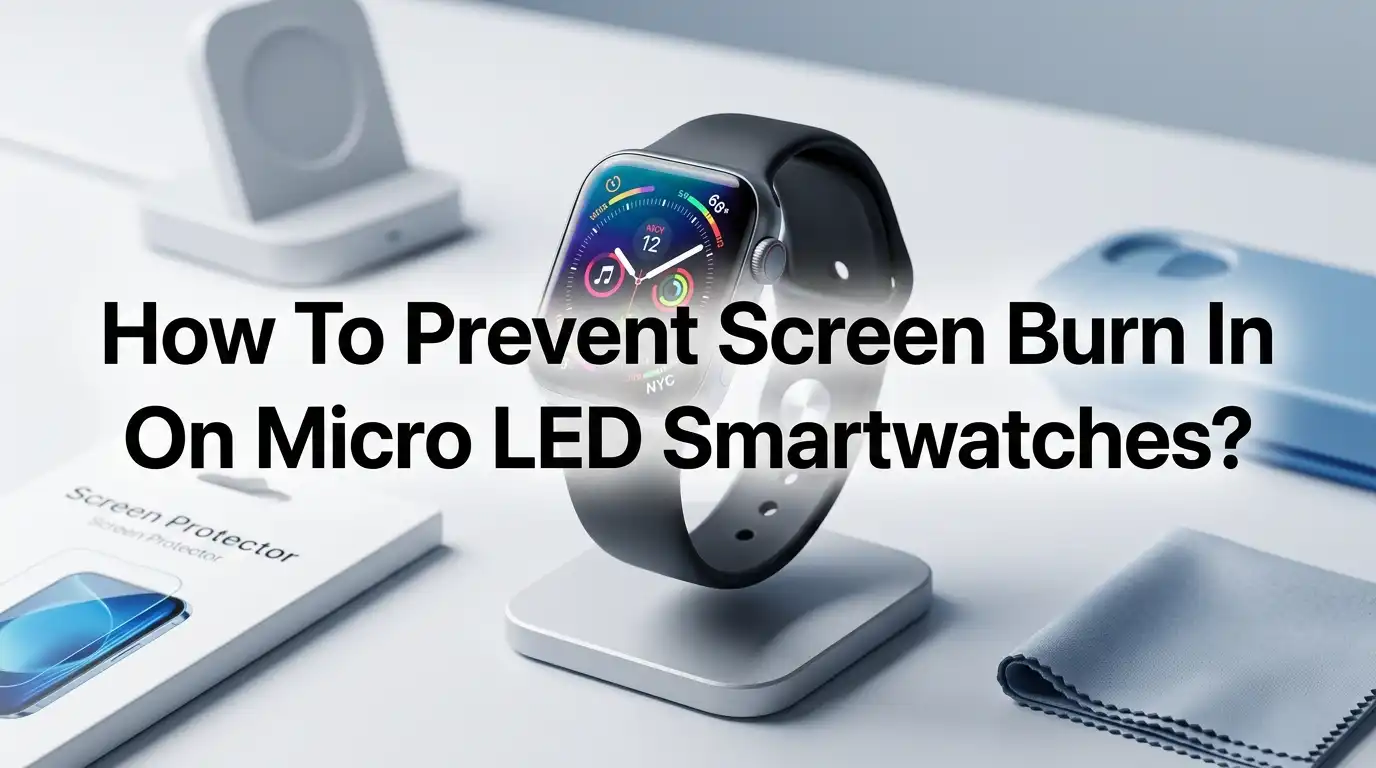
A good quality screen protector does more than guard against scratches. Anti glare and anti reflective screen protectors improve outdoor visibility, which means you do not need to crank your brightness to maximum as often.
When your screen is easier to read in bright conditions, you naturally keep the brightness lower. This indirectly protects your micro LEDs from the accelerated wear that comes with sustained high output. The protector acts as a passive defense layer for your display.
Choose a screen protector that is specifically designed for smartwatches. Look for options with high transparency ratings so you do not sacrifice display clarity. A matte finish protector works especially well for reducing glare during outdoor activities.
Pros: Adds scratch protection alongside burn in prevention, one time purchase, no ongoing maintenance.
Cons: Slightly reduces screen clarity on some models, needs replacement over time, adds minimal thickness.
Monitor Your Screen for Early Signs of Wear
Catching uneven pixel degradation early gives you the chance to adjust your habits before the damage becomes permanent. Periodically check your display by opening a full screen solid color image in white, gray, red, green, and blue. Look for any faint patches or outlines that should not be there.
Most micro LED displays will show zero signs of wear for years under normal use. But if you are a heavy user who keeps the screen on constantly at high brightness, early monitoring helps you catch and correct problems before they become visible during daily use.
If you notice any early signs, immediately reduce brightness, enable pixel shifting, and switch to a darker watch face. These corrective actions can slow further degradation and keep the wear from progressing to noticeable levels.
Pros: Allows early intervention, gives peace of mind, helps you fine tune your usage habits.
Cons: Requires periodic manual checking, early signs can be difficult to spot on small screens.
What To Do If Burn In Has Already Occurred
If you already notice ghost images on your micro LED smartwatch, the damage is usually permanent at the pixel level. However, you can minimize its visual impact and prevent it from getting worse. Start by immediately lowering your brightness and switching to a dark themed watch face.
Some users report that running a pixel refresh or screen cycling tool helps reduce the appearance of mild image retention. These tools display rapidly changing colors across the screen to try to equalize pixel wear. Results vary and this method works better for temporary image retention than true burn in.
Contact your smartwatch manufacturer if the burn in is severe. Warranty claims may cover display defects caused by normal use patterns, especially on newer micro LED devices where manufacturers understand the technology is still maturing. Document the issue with photos and usage details before reaching out.
Pros of early intervention: Slows further damage, may reduce visual impact, preserves remaining display life.
Cons: True burn in is irreversible, pixel refresh tools have limited effectiveness, warranty coverage varies by brand.
Frequently Asked Questions
Can micro LED smartwatches get burn in like OLED watches?
Micro LED smartwatches are significantly more resistant to burn in than OLED models because they use inorganic materials. However, they can still experience uneven pixel wear if static images are displayed at high brightness for very long periods. The risk is much lower, but it is not zero. Good usage habits will keep your display safe for years.
Does the always on display cause burn in on micro LED watches?
The always on display feature does increase the risk of uneven pixel wear because it keeps certain pixels active for hours at a time. Using a minimal, dark themed AOD face and scheduling the feature to turn off during sleep hours significantly reduces this risk. Pixel shifting features also help distribute wear during AOD use.
How often should I change my watch face to prevent burn in?
Switching your watch face every one to two weeks is a good practice. This ensures no single set of pixels bears the constant load of fixed elements. Choose faces that position their elements in different areas of the screen for the best results.
Will lowering brightness really make a difference for micro LED displays?
Yes. Even though micro LED handles high brightness better than OLED, running any display at maximum output for extended hours accelerates pixel aging. Auto brightness is the best setting because it adjusts output based on actual lighting needs rather than keeping the screen at a fixed high level.
Is micro LED burn in covered under warranty?
Warranty coverage depends on your manufacturer and the terms of your purchase. Many brands consider burn in from normal use a potential warranty claim, especially on newer micro LED devices. Contact your manufacturer with photo evidence and detailed usage information to explore your options.
How long do micro LED smartwatch displays last?
Under normal use with proper care, micro LED smartwatch displays can last 10 years or longer. This is significantly more than the 3 to 5 year average lifespan of AMOLED displays. Using the prevention tips in this guide will help you reach or exceed that expected lifespan.
Hi, I’m Minnie Cole, the creator of The Output Lab — a space where I share my passion for all things tech. I spend my days exploring the latest gadgets, devices, and electronics on Amazon, putting them through real-world testing so you don’t have to.