
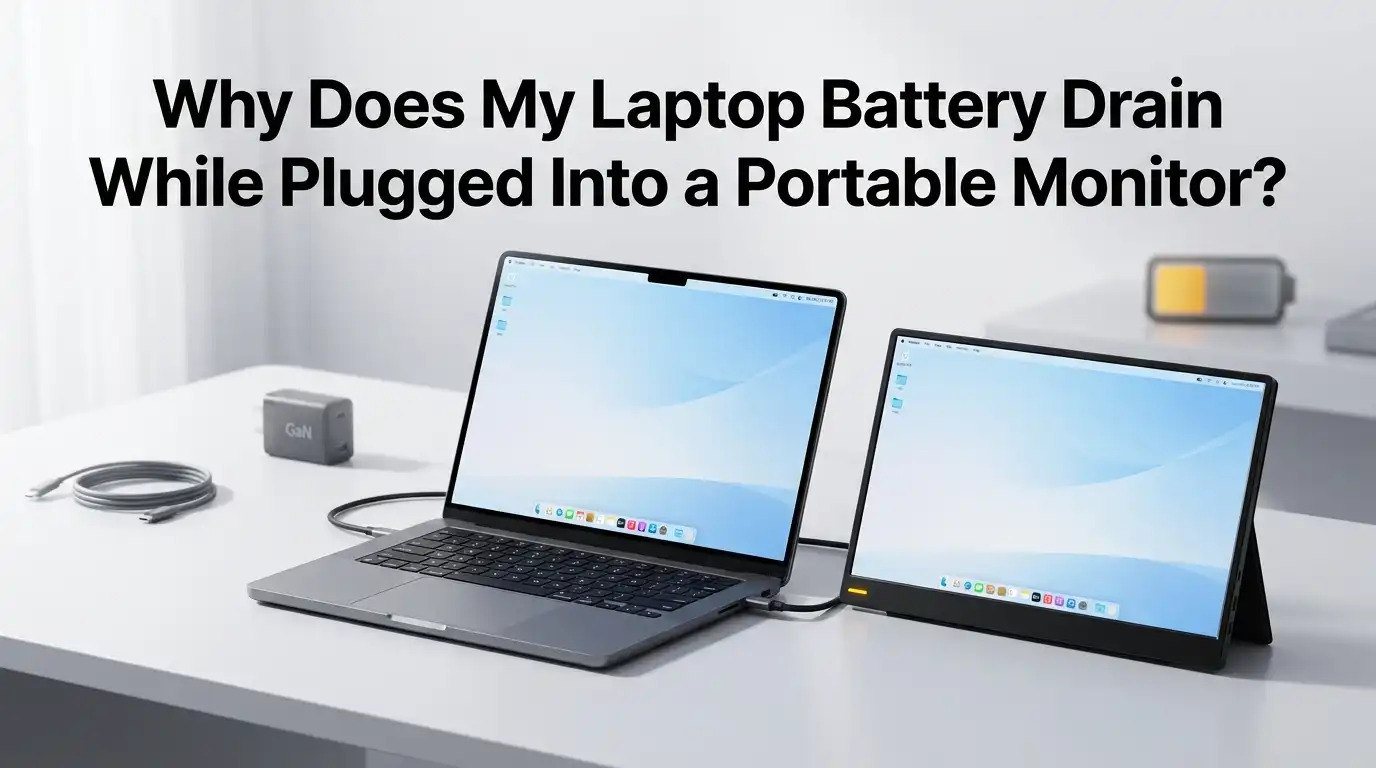
Why Does My Laptop Battery Drain While Plugged Into a Portable Monitor?
You just plugged your laptop into a portable monitor to get some extra screen space. Everything looks great until you glance at your battery icon. It’s dropping fast.
You thought the monitor would just display your screen, but it’s actually eating your laptop’s battery alive. This is a frustrating and common problem that catches many people off guard.
The truth is, most portable monitors draw power directly from your laptop through a USB C cable. That means your laptop is doing double duty. It powers itself and feeds the monitor at the same time.
Key Takeaways
- Your portable monitor is a power draw, not just a display. Most portable monitors consume between 8 and 15 watts of power from your laptop’s USB C port. This adds a significant load on top of what your laptop already uses, which is typically 30 to 60 watts. That extra drain can cut your battery life by 20% to 50% depending on your setup.
- Your laptop charger might not be strong enough. If your charger outputs 45 watts and your laptop needs 40 watts to run, there’s almost nothing left for the monitor. The laptop will pull from its battery to make up the difference. A higher wattage charger solves this in most cases.
- USB C Power Delivery passthrough is a game changer. Some portable monitors have a second USB C port that accepts power from a wall adapter. This lets you charge your laptop through the monitor while the monitor gets its own dedicated power. This setup stops battery drain completely.
- Brightness is the biggest power drain on any portable monitor. Dropping your monitor’s brightness from 100% to 50% can reduce its power draw by over 30%. This single change can add hours to your battery life.
- A power bank can replace a wall outlet. If you work in places without power outlets, a 65 watt USB C power bank connected to your monitor or laptop can keep both devices running for hours. This is a simple and effective mobile solution.
- Software settings on your laptop matter too. Power saving modes, GPU switching, and display sleep timers all affect how much energy your laptop sends to the monitor. A few quick changes in your system settings can make a noticeable difference.
How a Portable Monitor Draws Power From Your Laptop
Most portable monitors do not have their own power supply. They pull electricity directly from your laptop through a USB C connection. This single cable carries both video signal and power at the same time. It’s convenient, but it creates a real problem for your battery.
A typical portable monitor uses between 8 and 15 watts depending on its size, brightness, and resolution. That might sound small, but consider this. Your laptop already uses 30 to 60 watts on its own. Adding even 10 watts from a monitor increases total power consumption by 15% to 30%.
Your laptop’s battery has a fixed capacity, usually between 50 and 70 watt hours. Every extra watt of draw shortens how long that battery lasts. The monitor doesn’t “ask permission” to take power. It simply draws what it needs as soon as you plug it in.
Why Your Battery Drains Even While Plugged Into a Charger
This confuses a lot of people. Your laptop is plugged into a wall charger, yet the battery still drops. The reason is simple. Your charger does not provide enough wattage to power both the laptop and the monitor at the same time.
For example, many ultrabooks ship with a 45 watt or 65 watt charger. The laptop itself might need 40 to 55 watts under normal use. If you add a portable monitor pulling 10 to 15 watts, the total demand exceeds what the charger can deliver. The laptop compensates by pulling the extra power from its own battery.
This slow drain happens quietly. You may not notice it for an hour or two, but then the battery is suddenly at 60% even though you’ve been “plugged in” the whole time. The fix here is straightforward. You need a charger with a higher wattage output, or you need to reduce the total power demand.
The Role of USB C Power Delivery in Battery Drain
USB C Power Delivery is a standard that controls how much power flows through a USB C cable. Not all USB C ports are the same. Some only transfer data. Others support full power delivery at 60 watts, 85 watts, or even 100 watts.
If your laptop’s USB C port supports Power Delivery, it can send and receive higher amounts of power. This matters because a portable monitor with PD passthrough can accept power from an external adapter and forward the remaining power to your laptop. This means the monitor feeds itself and charges your laptop at the same time.
Without Power Delivery support, your laptop is stuck supplying power on its own. Check your laptop’s specifications to see the wattage rating of its USB C ports. This one detail determines whether your setup will drain your battery or keep it charged.
Pros of PD passthrough: Eliminates battery drain, single cable to your laptop, clean desk setup.
Cons of PD passthrough: Requires a compatible monitor, needs a high wattage wall adapter, not all monitors support it.
How Monitor Brightness Affects Battery Life
Brightness is the single largest factor in how much power your portable monitor consumes. At 100% brightness, a 15.6 inch portable monitor may draw 20 watts or more. At 50% brightness, that same monitor might use only 12 to 14 watts. At 30%, it could drop to around 8 to 10 watts.
Most people leave their monitor at full brightness without thinking about it. But unless you’re working outdoors in direct sunlight, you probably don’t need it. Indoor lighting usually works fine with 40% to 60% brightness.
Lowering brightness by half can extend your battery life by over an hour in many cases. Some monitors also include an auto brightness sensor that adjusts the screen based on ambient light. If your monitor has this feature, turn it on. It’s one of the easiest ways to save power without sacrificing your viewing experience.
Screen Size and Resolution Impact on Power Draw
Bigger screens use more power. Higher resolutions use more power. This is a basic rule that applies to all portable monitors. A 13.3 inch 1080p monitor might draw only 8 to 12 watts, while a 24.5 inch 4K monitor could pull 25 to 32 watts.
Resolution has a big impact because more pixels require more processing power from your laptop’s GPU. A 4K display pushes four times the pixels of a 1080p display. Your GPU works harder, generates more heat, and consumes more battery.
If you don’t need 4K for your task, consider lowering the resolution in your display settings. Dropping from 4K to 1080p can reduce power consumption by 10% to 15% on the monitor side alone. For tasks like email, documents, and web browsing, 1080p looks perfectly fine on most screen sizes.
Pros of lower resolution: Less battery drain, less GPU load, longer work sessions.
Cons of lower resolution: Reduced text sharpness, less screen detail for creative work.
Use a Higher Wattage Charger to Offset the Drain
One of the fastest fixes for this problem is using a more powerful charger. If your laptop came with a 45 watt adapter, upgrading to a 65 watt or 100 watt USB C charger gives you the extra headroom to power both devices.
The math is simple. If your laptop uses 45 watts and your monitor uses 12 watts, you need a charger that provides at least 57 watts just to break even. A 65 watt charger gives you a small buffer. A 100 watt charger gives you plenty of margin and even allows the battery to charge while the monitor is connected.
Make sure your replacement charger supports USB C Power Delivery and matches or exceeds your laptop’s original charger specs. Most modern laptops from major brands accept third party USB C PD chargers without issues. Always check your laptop manufacturer’s guidelines first.
Power the Monitor Separately With Its Own Source
Some portable monitors have a dedicated power input port, often a second USB C port or a micro USB port. This lets you plug the monitor into its own power source instead of relying on your laptop’s battery.
You can use a USB wall adapter or a power bank to feed the monitor directly. Your laptop then only sends a video signal through the main USB C or HDMI cable. This completely removes the power burden from your laptop.
This approach is especially useful for monitors that draw 15 watts or more. A small 10 watt USB adapter plugged into the monitor’s power port can make all the difference. Check your monitor’s manual to see if it supports external power input. Many mid range and premium portable monitors include this option.
Pros of separate power: No laptop battery drain, simple setup, works with power banks.
Cons of separate power: Extra cable and adapter to carry, not all monitors support this feature.
Adjust Your Laptop’s Power Settings for Efficiency
Your laptop’s operating system has built in tools that can reduce total power consumption. These settings limit how hard your CPU and GPU work, which reduces both heat and energy use.
On Windows, open Settings, then System, then Power and Battery. Switch to “Best Power Efficiency” mode. This reduces background processes, limits CPU speed, and dims the screen slightly. On macOS, enable Low Power Mode from System Settings under Battery.
You should also set your display to turn off after a short idle period, such as 2 or 3 minutes. This prevents the monitor from staying lit when you step away. Another useful setting is GPU switching. Many laptops have both an integrated GPU and a dedicated GPU. Forcing the integrated GPU for non gaming tasks uses far less power and still runs a portable monitor without issues.
Use a Power Bank to Stay Mobile Without Battery Drain
A USB C power bank rated at 65 watts or higher can keep your laptop and monitor running even when no wall outlet is available. This is ideal for trains, airports, coffee shops, and outdoor workspaces.
Connect the power bank to your laptop or to your monitor’s PD passthrough port. The power bank feeds the system while your laptop battery stays fully charged. A 20,000 mAh power bank (roughly 74 watt hours) can run a portable monitor for 4 to 6 hours at moderate brightness.
For longer sessions, look for power banks with 30,000 mAh or higher capacity. Some models can charge a laptop and monitor simultaneously. This portable solution frees you from hunting for outlets and lets you work from almost anywhere.
Close the Laptop Lid to Save Even More Power
If you’re using the portable monitor as your main display, close your laptop lid. This turns off the laptop’s built in screen, which can save 5 to 10 watts depending on your laptop model and brightness level.
On Windows, go to Control Panel, then Power Options, then “Choose what closing the lid does” and set it to “Do nothing.” This keeps the laptop running with the lid closed. On macOS, the laptop automatically stays awake when connected to an external display with a keyboard and mouse.
Running just one screen instead of two reduces total power demand significantly. Your GPU renders fewer pixels, your backlight powers only one panel, and your overall system runs cooler. This is a small change that delivers real battery savings.
Keep Drivers and Firmware Updated
Outdated graphics drivers and monitor firmware can cause your system to use more power than necessary. Manufacturers regularly release updates that improve power management and display efficiency.
On Windows, check for driver updates through Device Manager or your GPU manufacturer’s app, such as NVIDIA GeForce Experience or AMD Software. On macOS, system updates typically include the latest display drivers.
Some portable monitors also have firmware that can be updated through a companion app or USB connection. These updates may fix power negotiation bugs, improve USB C compatibility, and reduce idle power draw. Spending five minutes on updates can translate into better battery performance every day.
Choose a Monitor With Built In Power Management Features
If you haven’t purchased a portable monitor yet or plan to upgrade, look for models with smart power features. The most useful feature is USB C PD passthrough, which lets the monitor accept wall power and forward it to your laptop.
Other helpful features include an eco mode that automatically lowers brightness and frame rate, an auto sleep function that powers the monitor down when it detects no input, and a low power standby mode that uses less than 1 watt when idle.
Avoid monitors that only connect through a single USB C cable with no secondary power input. These force your laptop to be the sole power source, which guarantees battery drain during unplugged use. A monitor with its own power options gives you flexibility and keeps your laptop battery healthy over the long term.
Pros of smart power features: Longer battery life, less cable clutter, better long term battery health.
Cons of smart power features: Higher price, slightly more complex setup.
Frequently Asked Questions
How much battery life does a portable monitor use from a laptop?
A portable monitor typically draws between 8 and 15 watts from your laptop. On a 60 watt hour battery, this can reduce your total battery life by 20% to 50% depending on the monitor’s brightness, resolution, and your laptop’s workload. Lowering brightness and using power saving modes can reduce this drain significantly.
Can I use a portable monitor without draining my laptop battery at all?
Yes. You can eliminate battery drain by using a portable monitor with USB C PD passthrough and connecting a wall adapter to the monitor. The monitor powers itself and forwards the remaining power to your laptop. You can also power the monitor from a separate USB power source or power bank.
Does HDMI use less battery than USB C for a portable monitor?
HDMI itself does not carry power, so the monitor needs its own power source when connected through HDMI. This means your laptop battery is not drained by the monitor’s power needs. However, your laptop’s GPU still works to output the video signal, which uses a small amount of extra power. Overall, HDMI with a separately powered monitor is easier on your battery than a single USB C connection.
What wattage charger do I need to run a laptop and portable monitor together?
Add your laptop’s power requirement and your monitor’s power draw, then add at least 10 watts of buffer. For example, if your laptop needs 45 watts and your monitor draws 12 watts, a 65 watt charger is a safe minimum. A 100 watt charger gives you extra room for charging the battery while both devices run.
Will using a portable monitor damage my laptop battery over time?
Frequent deep discharges and constant cycling can reduce battery health over time. If your portable monitor regularly drains your battery to low levels, it can shorten the battery’s lifespan. The best practice is to keep your laptop plugged in or use PD passthrough to maintain a stable charge level while using the monitor.
Hi, I’m Minnie Cole, the creator of The Output Lab — a space where I share my passion for all things tech. I spend my days exploring the latest gadgets, devices, and electronics on Amazon, putting them through real-world testing so you don’t have to.