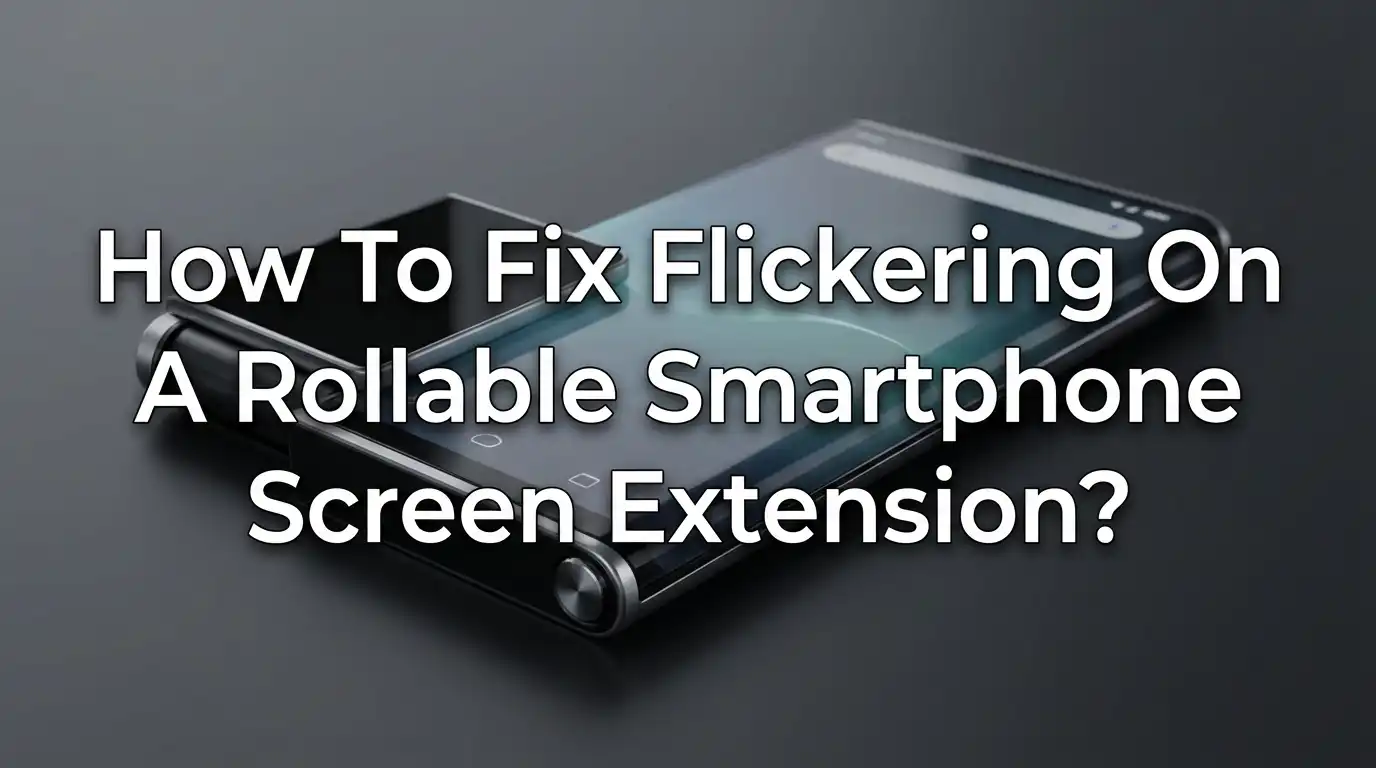
How To Fix Flickering On A Rollable Smartphone Screen Extension?
You are not alone. Rollable smartphones represent one of the most exciting leaps in mobile technology, but their unique screen extension mechanism introduces problems that traditional phones simply do not face.
The flexible OLED display rolls in and out through a motorized mechanism, and this constant motion puts stress on delicate components. Screen flickering during or after extension is one of the most common complaints from rollable phone owners.
The good news is that most flickering issues have clear causes and practical fixes. Whether it is a software glitch, a display setting gone wrong, or a hardware concern, this guide walks you through every solution.
Key Takeaways
- Screen flickering on a rollable smartphone often stems from software bugs, display settings, or flex cable stress caused by the rolling mechanism. Start with simple software fixes before assuming it is a hardware problem.
- Restarting your phone and clearing the system cache can resolve temporary glitches that cause the screen to flicker during or after extension. These are quick fixes that take less than five minutes.
- Adaptive brightness and auto refresh rate settings are frequent culprits behind rollable screen flickering. Disabling these features can stop the display from rapidly shifting between states and creating a visible flicker.
- PWM (Pulse Width Modulation) dimming at lower brightness levels can make OLED flickering more noticeable, especially on the extended portion of a rollable display. Raising your brightness above 50% or enabling DC dimming can reduce this effect.
- Booting into safe mode helps you determine whether a third party app is causing the flicker. If the flickering stops in safe mode, a recently installed app is likely the source of the problem.
- Persistent flickering that does not respond to any software fix usually points to a hardware issue such as a stressed flex cable, a loose display connector, or damage to the rolling mechanism itself. In these cases, professional repair is the safest path forward.
What Causes Flickering On A Rollable Smartphone Screen
Rollable smartphones use flexible OLED panels that wrap around an internal roller. Every time you extend or retract the screen, the display bends and moves through a narrow slot.
This repeated motion puts continuous mechanical stress on the flex cables that connect the display to the motherboard. Over time, this stress can loosen connections or cause micro damage to the cable.
Software can also trigger flickering. Your phone’s GPU renders graphics on the display, but when an app demands more processing power than the GPU can handle, the phone switches between GPU and CPU rendering.
This oscillation between rendering methods creates visible flicker. Display settings like adaptive brightness and variable refresh rate add another layer, as the screen rapidly adjusts itself and sometimes fails to do so smoothly.
Restart Your Rollable Smartphone First
A simple restart solves more screen problems than most people expect. When your rollable phone flickers, background processes may be overloading the GPU or creating conflicts with the display driver. A restart clears active memory, shuts down all running processes, and gives the display system a fresh start.
Press and hold the power button until the restart option appears. Tap restart and wait for the phone to fully boot up. Once it powers back on, extend the rollable screen and check if the flickering continues.
This takes under a minute and should always be your first troubleshooting step. If the flicker was caused by a temporary software conflict, this fix alone will resolve it.
Pros: Fastest and easiest fix, no data loss, works for temporary glitches.
Cons: Does not fix persistent software bugs or hardware issues.
Turn Off Adaptive Brightness And Auto Refresh Rate
Adaptive brightness uses light sensors to automatically adjust your screen brightness based on your surroundings.
On rollable phones, this feature can behave unpredictably because the sensor position changes when the screen extends. The display may flicker as it tries to recalibrate brightness for the larger screen area.
Go to Settings, then Display, and toggle off Adaptive Brightness. Set your brightness manually to a comfortable level. While you are there, look for a refresh rate setting.
If your phone is set to an adaptive or variable refresh rate, switch it to a fixed rate like 60Hz or 120Hz. A fixed refresh rate prevents the display from constantly shifting between different rates, which is a known cause of OLED flicker.
Pros: Quick settings change, directly addresses a common flickering cause.
Cons: You lose automatic brightness adjustment and may notice slightly higher battery use at a fixed high refresh rate.
Clear The System Cache On Your Phone
Your phone stores temporary data in a system cache to help it boot faster and run more smoothly. Sometimes this cached data becomes corrupted, especially after a software update.
Corrupted cache data related to the display driver or GPU can cause screen flickering on any phone, but rollable devices are especially sensitive because of their unique display architecture.
To clear your system cache, power down your phone completely. Press and hold the volume down button and the power button together until the recovery menu appears.
Enter your PIN if prompted. Select Wipe Cache Partition or Clear Cache from the menu. Confirm the action and then reboot the device. This process does not delete your personal data like photos, messages, or apps. It only removes temporary system files.
Pros: Safe process, no personal data loss, fixes corrupted display data.
Cons: Phone may feel slightly slower on the first boot after clearing the cache as it rebuilds temporary files.
Boot Into Safe Mode To Identify Problem Apps
Safe mode starts your phone with only the original system apps. All third party apps are temporarily disabled. This is a powerful diagnostic tool that tells you whether an installed app is causing the screen to flicker on your rollable display.
Press and hold the power button until the power off prompt appears on screen. Then tap and hold the Power Off icon until you see the Safe Mode option. Confirm and let the phone reboot. Once in safe mode, extend the rollable screen and use the phone normally for a few minutes.
If the flickering stops, a third party app is the problem. Start by uninstalling the most recently installed apps one at a time. Reboot in normal mode after each removal to test.
Pros: Pinpoints app related causes, no data loss, built into every Android phone.
Cons: Time consuming if you have many apps, does not help with hardware or system level issues.
Address PWM Flickering At Low Brightness
OLED screens do not dim by simply reducing light output. Instead, most OLED displays use a technique called Pulse Width Modulation, or PWM.
The screen rapidly turns pixels on and off to simulate lower brightness. At higher brightness levels, the pixels stay on for longer periods, and the flicker is invisible. At lower brightness, the on/off cycles become more noticeable and can cause visible flickering.
On a rollable phone, the extended portion of the screen may respond to PWM differently than the retracted portion. This creates uneven flickering that is most visible in dim lighting. The simplest fix is to raise your brightness above 50%.
Some phones also offer a DC dimming or anti flicker mode in display settings. Enable this if your device supports it. DC dimming reduces brightness by lowering voltage instead of flickering pixels, which eliminates PWM flicker entirely.
Pros: Directly solves brightness related flickering, DC dimming is the most effective method.
Cons: Higher brightness uses more battery, DC dimming may slightly reduce color accuracy at very low brightness levels.
Update Your Phone Software And Display Drivers
Manufacturers regularly release software updates that include bug fixes for display issues. A rollable phone’s display system relies on specialized firmware that manages the rolling mechanism, the screen extension calibration, and the display driver. An outdated version of this firmware can produce flickering.
Go to Settings, then Software Update, and tap Download and Install. If an update is available, install it and restart your phone. Pay attention to the update notes.
Manufacturers often list display related fixes in the changelog. If your phone has a separate display or firmware update section, check that as well. Keeping your phone fully updated is one of the best preventive measures against flickering.
Pros: Free, often fixes known bugs, improves overall device stability.
Cons: Updates can occasionally introduce new bugs, requires a stable internet connection.
Check For Physical Damage To The Rolling Mechanism
The rolling mechanism on a rollable smartphone is a precision component. It uses small motors and a track system to extend and retract the flexible display.
If dust, sand, or debris gets into the rolling slot, it can interfere with the smooth movement of the screen. This creates uneven pressure on the display and can cause flickering, dead spots, or visual artifacts.
Examine the edges of the rolling slot carefully. Look for any visible debris, scratches, or signs of damage. Do not insert sharp objects into the slot to try to clean it. Instead, use a can of compressed air to gently blow out any particles.
If you notice scratches on the display near the rolling area, the screen may have been damaged by foreign objects during the rolling process. This kind of physical damage usually requires professional repair.
Pros: Identifies a fixable cause, compressed air cleaning is safe and easy.
Cons: Physical damage cannot be fixed at home, debris in the mechanism may need specialized service.
Inspect The Flex Cable Connection
The flex cable is the ribbon shaped connector that carries video signals from the motherboard to the display panel. In rollable phones, this cable bends and moves every time the screen extends or retracts. Over months of use, this repeated motion can weaken the cable, loosen its connection, or create small tears in the conductor.
Symptoms of a damaged or loose flex cable include intermittent flickering, flickering that changes when you tap the back of the phone, or flickering that appears only during or right after extending the screen.
Unfortunately, inspecting or repairing the flex cable is not a do it yourself task for most users. Opening a rollable phone requires specialized tools, and improper handling can cause further damage. If you suspect a flex cable issue, take your phone to an authorized service center.
Pros: Identifies the root cause of hardware related flickering.
Cons: Requires professional repair, opening the phone yourself can void your warranty.
Perform A Factory Reset As A Last Software Fix
If every software fix above has failed to stop the flickering, a factory reset is your last resort before seeking hardware repair. A factory reset erases all data on your phone and restores it to its original software state. This eliminates any corrupted files, broken settings, or problematic app data that could be causing the display issue.
Before you proceed, back up all your important data to cloud storage or a computer. Then go to Settings, select General Management or System, and tap Reset. Choose Factory Data Reset and confirm.
The phone will erase everything and reboot. After the reset, set up your phone as new and test the rollable screen extension before reinstalling apps. If the flickering is gone, add your apps back one at a time to identify any problem software.
Pros: Eliminates all software related causes, gives you a completely clean start.
Cons: Erases all personal data, time consuming to set up the phone again.
Understand When Professional Repair Is Necessary
Some flickering problems go beyond what any software fix can solve. If you have tried every step in this guide and the screen still flickers, the problem is almost certainly hardware related.
Common hardware causes include a worn or damaged flex cable, a failing OLED panel, a malfunctioning rolling motor, or a loose display connector on the motherboard.
Take your phone to an authorized service center rather than a third party repair shop. Rollable phones contain specialized components that require specific tools and expertise.
A certified technician can run diagnostic tests on the display panel, check the flex cable integrity, and examine the rolling mechanism. If your phone is still under warranty, the repair may be covered at no cost. Always check your warranty terms before paying for service.
Pros: Fixes hardware issues that software cannot solve, warranty may cover costs.
Cons: Can be expensive if out of warranty, may take several days.
Prevent Flickering From Happening Again
Prevention is always better than repair. To protect your rollable smartphone screen from future flickering issues, follow a few simple habits. Keep the rolling slot clean by avoiding dusty or sandy environments. Do not extend or retract the screen while the phone is in a pocket or bag where debris could enter the mechanism.
Avoid running the screen at very low brightness for long periods to reduce PWM related stress on the display. Update your phone software as soon as updates become available.
Handle the rolling mechanism gently and avoid forcing the screen if it feels stuck. Use a protective case designed for your specific rollable phone model if one is available. These small steps add up and can significantly extend the life of your rollable display.
Frequently Asked Questions
Why does my rollable phone screen flicker only when I extend it?
The flickering during extension usually happens because the flex cable is under stress as the display moves. The cable bends and stretches during this process, and if the connection is slightly loose or the cable has minor damage, the video signal gets interrupted briefly. Software calibration issues can also cause the display to flicker as it adjusts to the new screen size. Try restarting the phone and updating your software first. If the problem persists, the flex cable may need professional inspection.
Can screen flickering damage my rollable phone permanently?
Flickering itself does not usually cause permanent damage to the phone’s internal components. However, the underlying cause of the flickering might. A loose flex cable can worsen over time and eventually stop sending signals to part of the display. A debris filled rolling mechanism can scratch the screen during each extension. Addressing the flickering early prevents these issues from becoming irreversible.
Is it safe to use my rollable phone while the screen is flickering?
Using the phone with a flickering screen is generally safe for short periods. However, prolonged exposure to a flickering display can cause eye strain, headaches, and discomfort. If the flickering is caused by a hardware issue, continued use may also worsen the underlying problem. It is best to troubleshoot and fix the issue as soon as possible.
Does a factory reset always fix screen flickering on rollable phones?
A factory reset fixes flickering only when the cause is software related. If the flickering comes from corrupted files, buggy apps, or a broken display setting, a reset will likely solve it. If the cause is a hardware problem like a damaged flex cable or faulty OLED panel, a factory reset will have no effect. Always try simpler software fixes first before resorting to a full reset.
How much does it cost to repair a flickering rollable phone screen?
Repair costs vary depending on the manufacturer, the specific model, and the nature of the damage. A flex cable replacement is generally less expensive than a full OLED panel replacement. If your phone is under warranty and the issue is not caused by accidental damage, the repair may be free. Contact your manufacturer’s service center for an accurate estimate before proceeding.
Hi, I’m Minnie Cole, the creator of The Output Lab — a space where I share my passion for all things tech. I spend my days exploring the latest gadgets, devices, and electronics on Amazon, putting them through real-world testing so you don’t have to.