
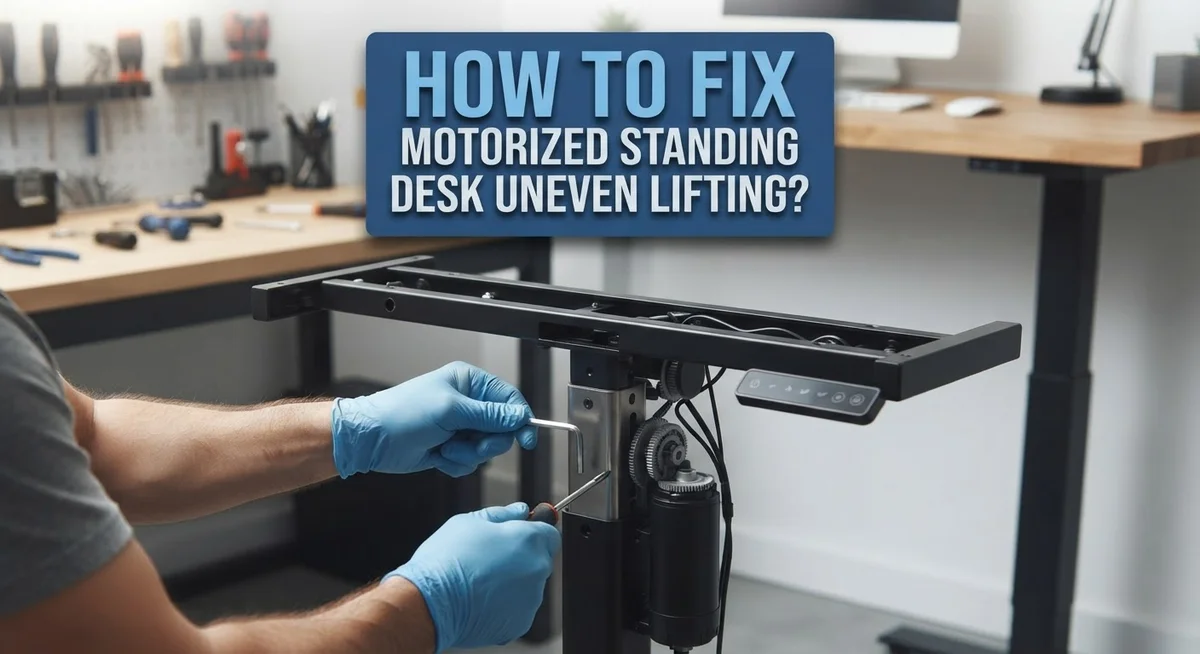
How To Fix Motorized Standing Desk Leg Uneven Lifting?
Does your standing desk tilt to one side when you raise it? You are not alone.
Uneven lifting is one of the most common problems with motorized standing desks. It happens when one leg moves faster than the other, leaving your desktop crooked instead of flat.
This issue usually points to a few simple causes. Sometimes the control box loses sync with the motors. Other times, a drive rod disconnects under the desk. Cables can loosen, objects can block leg movement, or too much weight can strain the system.
The good news? Most of these problems have an easy fix.
Let’s get your workspace steady and safe.
In a Nutshell
- Lower the desk fully first. Always start troubleshooting from the lowest position. This helps the control box reset properly.
- Reset the control box. Press and hold the down arrow on your hand switch for about 10 seconds. This often fixes sync issues between the legs.
- Check all cable connections. Loose or unplugged cables can cause one leg to lift slower than the other. Inspect them before trying anything else.
- Look under the desk for a disengaged rod. The drive rod connects the motor to the leg. If it slips out, that leg won’t lift evenly.
- Remove extra weight from the desktop. Too much weight can overload the motor on one side. This causes tilting during lifts.
- Clear any objects blocking leg movement. Cords, bins, or furniture near the legs can stop smooth motion. Check the area around each leg.
Why Standing Desk Legs Lift Unevenly
Motorized standing desks have two or more separate motors working together. Each leg operates independently, which means they must stay synchronized. When one leg lifts faster or slower than the other, your desktop tilts. This happens because the control box loses track of where each leg should be.
The most common reason for uneven lifting is a loss of synchronization between motors. Your control box acts like a traffic controller. It tells each motor when to move and how far to go. If this communication breaks down, one leg moves while the other stays still.
Power interruptions cause many synchronization problems. A brief power loss or accidental unplugging can confuse the control box. It forgets the starting position of each leg. The system then lifts unevenly because it cannot recalibrate properly.
Mechanical disconnection is another frequent culprit. Under your desk sits a drive rod that connects each motor to its leg. If this rod comes loose or disengages, that leg cannot move. You will see one side of your desk rise while the other stays flat.
Weight distribution matters too. If you place all your equipment on one side, that motor works harder. Overloading one leg strains its motor and slows its movement. The other side lifts faster, creating an uneven tilt.
Finally, cable issues create problems. Loose or damaged cables reduce power to a motor. A motor without full power lifts slower than one receiving steady electricity. This speed difference makes your desk tilt during height adjustments.
Understanding these causes helps you troubleshoot effectively. Each issue has a specific solution that targets the root problem.
Common Causes of Desynchronized Legs
Your motorized standing desk legs lift unevenly because the motors lose communication with each other. Each leg has its own motor, and they must work in perfect sync. When they don’t, your desktop tilts.
Objects blocking leg travel stop one side from moving smoothly. Cords, boxes, or furniture near the base can jam the mechanism. The motor keeps trying to push, but the leg cannot move. Meanwhile, the other leg lifts normally, creating an imbalance.
Power interruptions disrupt the control box. When electricity cuts off suddenly, the motors forget their synchronized position. The system cannot recalibrate on its own. This is one of the most common triggers for uneven lifting.
Excessive weight on the desktop overloads one motor more than the other. If you place heavy items on one side, that motor works harder. It may slow down or fail to lift completely. The other side rises normally, causing the tilt.
A disengaged drive rod means the motor cannot transfer power to the leg. The rod connects the motor shaft to the lifting mechanism. If it slips out of place, that leg stops responding. You will hear clicking sounds as the motor spins without moving the leg.
Loose or disconnected cables prevent signals from reaching the motors. The control box sends lift commands through wires. A unplugged cable means one motor never receives the instruction. The desk tilts because only one side moves.
Control box misalignment happens when the internal sensors lose calibration. The box no longer knows where each leg should be. It cannot tell if legs are level anymore. This causes the motors to lift at different speeds or heights.
Before You Start: Safety and Preparation Checklist
Before you attempt any fixes, take time to prepare properly. Safety comes first when working with motorized furniture.
Start by clearing the area around your desk. Remove items from the floor beneath and beside the legs. Objects blocking the leg travel can interfere with your troubleshooting efforts. Move chairs, storage bins, and cables out of the way so both legs move freely.
Unplug the desk from the electrical outlet. This simple step protects you from electrical hazards while you work. Wait about 30 seconds after unplugging to allow the system to fully power down. This brief pause helps reset any temporary glitches in the control box.
Gather your tools before starting. You will need a level to check if your desktop is truly uneven. A flashlight helps you see under the desk clearly. Have a notepad ready to record what you observe during inspection.
Check your desk weight capacity. Review the manual or manufacturer information to understand how much weight your desk can safely hold. Overloaded desks strain the motors and cause uneven lifting. Remove unnecessary items from the desktop to reduce strain on the system.
Inspect the control box location. The hand switch and control box should sit in accessible spots. Make sure nothing is covering or pressing against these components.
Document the problem. Note which leg lifts slower or faster. Observe if the desk makes clicking sounds or grinding noises. Does it tilt noticeably to one side? This information helps identify the exact issue.
Taking these preparation steps prevents accidents and makes your troubleshooting process smoother and more effective.
Step-by-Step Guide to Resetting the Control Box
Resetting your control box brings the motors back into sync. This process recalibrates the system so both legs lift evenly again.
Start by lowering your desk completely. Press and hold the down arrow on your hand switch for approximately 10 seconds. You will hear clicking sounds as the control box recalibrates. This is normal behavior. Keep holding the button until the desk reaches its lowest position and the clicking stops.
Once the desk sits fully lowered, use a level to verify the desktop is flat. Place the level across the width of your desktop. If it shows uneven surfaces, the reset worked. If the desktop still tilts, proceed to the next troubleshooting step.
Check all cable connections before attempting another reset. Look underneath your desk where cables connect to each motor. Ensure every plug sits firmly in its socket. Loose connections prevent proper communication between the control box and motors.
Inspect the drive rod connection under your desk as well. This metal rod transfers power from the motor to the leg. If it appears disengaged or disconnected, you may need professional help to reattach it safely.
After completing the reset, test the desk by pressing the up arrow slowly. Watch both sides as they rise. They should move at the same speed. If one side still moves faster, repeat the reset process one more time.
Do not add weight to the desktop during testing. Keep it empty so the motors work without strain. Once both sides lift evenly, your reset was successful. Your desk is now ready for normal use.
How to Check and Reconnect the Drive Rod
The drive rod is the mechanical component that transfers power from your motor to the leg itself. When this rod disconnects or disengages, one side of your desk stops lifting properly while the other side continues moving up normally.
Start by lowering your desk completely to the floor. This gives you safe access to the underside of your desk. Once lowered, crawl underneath and locate where the drive rod connects to each leg. The rod should be firmly attached with a pin or bolt.
Look for any visible gaps between the rod and the leg connection point. A disconnected rod will appear loose or completely separated from the mounting bracket. If you spot this problem, the rod has likely slipped out of its socket during use or after a power interruption.
Check the connection hardware carefully. Feel around the attachment point to see if the pin is missing or if the bolt has loosened. Sometimes the rod simply needs to be reseated back into the bracket. Gently push or tap the rod back into place if it has shifted.
If the rod appears physically damaged or bent, it will need replacement. A bent rod cannot transfer power smoothly and causes the uneven lifting problem you experience.
After reconnecting the drive rod, reconnect your desk to power and perform a full reset. Lower the desk completely again using your hand switch. Press the down arrow for 10 seconds to trigger the control box reset. This recalibration helps both motors recognize each other again.
Test your desk slowly by pressing the up arrow. Watch both sides lift together. The desk should now move evenly without one side lagging behind the other.
Tips for Preventing Future Leg Misalignment
Regular maintenance stops most alignment problems before they start. Check your desk weight distribution every month. Place heavier items toward the center of the desktop rather than on one side. Uneven weight causes motors to work harder on one leg, which leads to misalignment over time.
Keep the area around your desk clear of obstacles. Objects blocking leg travel force the motors to compensate unevenly. Move chairs, storage boxes, and cables away from the leg path. This simple habit prevents many mechanical issues.
Test your desk movement weekly. Raise and lower it slowly without any weight on top. Listen for unusual sounds or notice if one side moves faster than the other. Catching problems early makes fixes much easier.
Inspect cable connections every three months. Loose or damaged cables disrupt communication between your control box and motors. Check where cables attach to each leg and where they connect to the hand switch. Tighten any loose connections you find.
Clean your control box regularly. Dust and debris can interfere with its electronics. Use a soft, dry cloth to wipe the exterior. Never spray liquid directly on the box.
Review your desk capacity and stick to it. Overloading your desk stresses the motors and causes uneven lifting. Know the weight limit and distribute loads properly.
Perform a full reset every six months as preventive maintenance. Lower your desk completely and press the down arrow for 10 seconds. This recalibrates your motors and keeps them synchronized.
Keep your manual nearby. Reference it when you notice changes in how your desk operates. Early attention to small issues prevents expensive repairs later.
Common Mistakes to Avoid When Troubleshooting
When troubleshooting an uneven lifting motorized standing desk, several mistakes can make things worse. Understanding what not to do saves you time and frustration.
Don’t skip the full reset process. Many people attempt partial fixes before completing the proper reset. Your control box needs the complete sequence to recalibrate both motors. Rushing through this step leaves the system out of sync, and the problem persists.
Don’t ignore weight distribution. Motorized desks have weight limits for a reason. Exceeding capacity causes motors to work unequally. One side may lift slower or stop completely. Always remove extra items from your desktop before troubleshooting. This eliminates weight as a variable.
Don’t forget to check cables first. Loose or damaged wires prevent proper communication between your control box and motors. Many people jump straight to complex fixes when a simple cable reconnection solves the issue. Take two minutes to inspect every connection point.
Don’t attempt fixes with the desk raised. Working underneath an elevated desk is dangerous. Always lower your desk completely to the floor before accessing mechanical components. This protects you from injury.
Don’t assume the drive rod is fine without looking. A disconnected or damaged rod causes immediate lifting problems. Visual inspection takes seconds but prevents unnecessary troubleshooting steps. Look for gaps, bent metal, or missing hardware.
Don’t test with a full load. After any repair, keep your desktop empty during initial testing. Motors need to work freely without strain to show real results. Add weight back gradually once you confirm even lifting.
These mistakes delay solutions. Avoid them, and you’ll fix your desk faster.
Advanced Troubleshooting When the Reset Doesn’t Work
When your motorized standing desk still lifts unevenly after a reset, you need to dig deeper. The control box may have lost its synchronization signal, or a mechanical issue is preventing proper communication between your legs.
Start by checking your power source. Unplug the desk completely for 30 seconds, then plug it back in. This forces the control box to restart fresh. Some control boxes need a hard reset rather than the standard button press.
Next, inspect all cables running from your control box to each leg motor. Look for pinched, frayed, or loose wires. A damaged cable stops one leg from receiving movement commands. Gently wiggle each connection point while watching for any sparks or loose fits. Tighten any connectors you find.
Listen carefully during the reset process. Clicking or grinding sounds mean your control box is trying to recalibrate but something blocks it. This often indicates a mechanical jam or misalignment in the leg assembly itself.
If clicking continues after a full reset, one leg motor may be failing. Motors wear out over time and stop responding to electrical signals. You’ll need to test each leg independently by using single leg controls if your system has them.
Check your desk weight distribution too. Uneven loading can confuse the control box into thinking one side is heavier. Remove items from one side and test again.
If none of these steps work, the control box itself may need replacement. Electronic components fail occasionally, and the box cannot recalibrate properly. Document what you’ve tried before contacting support, as this information helps them diagnose the real problem quickly.
Final Thoughts
Fixing an uneven motorized standing desk does not have to feel impossible. Most problems come down to a few simple causes. Loose connections, blocked legs, and unsynced control boxes explain nearly every case.
The good news is that these issues are fixable at home. You rarely need a technician to solve leg synchronization problems.
Patience matters most during this process. Rushing through a reset often leads to more confusion later. Take your time with each step and follow the correct order.
Always start with the basics before assuming something is broken. Check power, check cables, and lower your desk fully before testing anything else.
If a reset does not work right away, try it again. Control boxes sometimes need more than one attempt to sync properly.
Remember that safety comes first during any repair. Never work under a desk that is still raised or powered on.
Small mechanical issues cause big lifting problems. A single loose cable or blocked leg can throw off the entire desk.
This is why careful inspection saves time. You avoid guessing and instead find the real problem quickly.
Motorized desks are built to last, but they still need occasional attention. Think of resets and cable checks as regular upkeep, not emergency fixes.
Once your desk lifts evenly again, keep an eye on it. Watch for early signs of trouble, like unusual sounds or slow movement.
Catching problems early makes future fixes easier. Your desk will likely serve you well for years if you stay consistent with basic care.
In the end, a level desk depends on simple, steady maintenance. Small efforts now prevent bigger headaches later.
Frequently Asked Questions
Why is one side of my desk lifting higher than the other?
Your desk legs are out of sync. Each leg has its own motor, and they need to communicate through the control box. When one side lifts higher, the control box has lost track of where each leg should be. This happens when power drops briefly or cables disconnect slightly.
Start by lowering your desk completely. Use a level to check if the desktop is actually uneven. Then press and hold the down arrow on your hand switch for about 10 seconds. This triggers a reset that tells the control box to recalibrate both motors.
Could something be blocking my desk legs from moving?
Yes. Objects under your desk prevent smooth lifting. Check the entire path where each leg travels up and down. Remove any items like cables, storage boxes, or furniture pieces in the way.
Also inspect the drive rod underneath your desk. This metal rod connects your leg to the motor. If it has disengaged from the leg, one side won’t lift at all. You may need to remove your desk from the wall to reattach it properly.
What if my desk is too heavy?
Motorized desks have weight limits. Exceeding this capacity makes motors work harder and lift unevenly. Remove items from your desktop and shelves. Check your desk manual for the maximum weight it can handle.
Uneven weight distribution also matters. If you load one side heavier than the other, that motor strains more. Spread your items evenly across the surface.
Why do I hear clicking sounds during the reset?
Clicking means your control box is trying to synchronize the motors. This is normal during a reset. Let the process complete fully. The clicking should stop after 10 to 15 seconds.
If clicking continues after multiple resets, one motor may be failing. Contact the manufacturer for assistance.
Hi, I’m Minnie Cole, the creator of The Output Lab — a space where I share my passion for all things tech. I spend my days exploring the latest gadgets, devices, and electronics on Amazon, putting them through real-world testing so you don’t have to.