
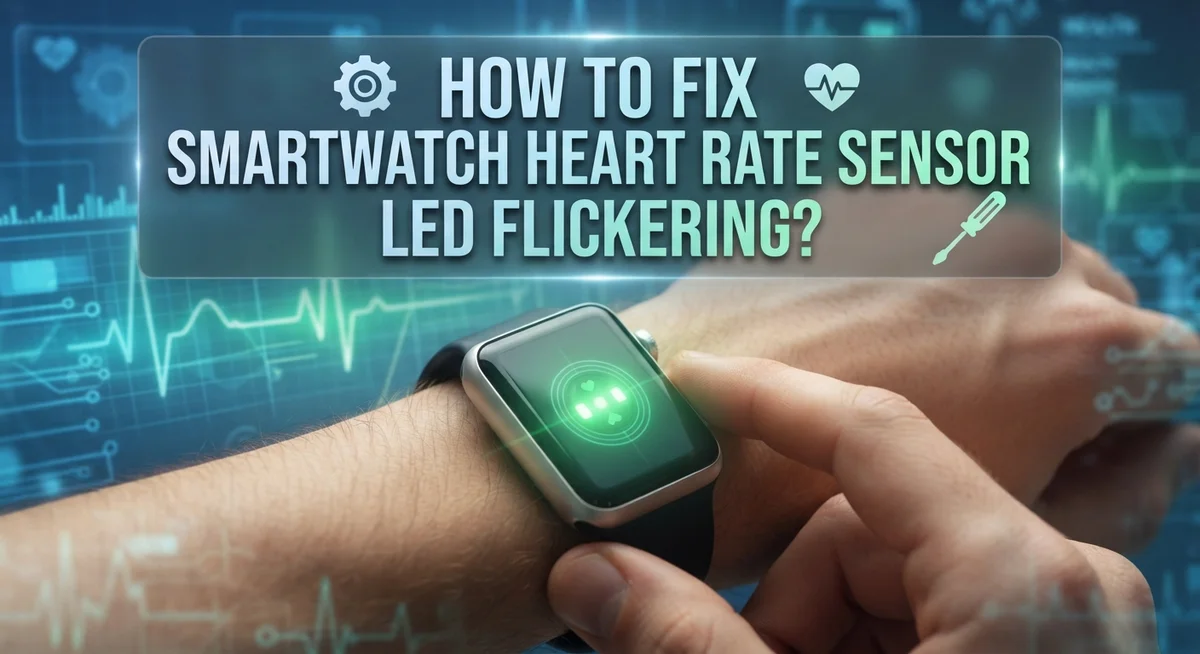
How To Fix Smart Watch Heart Rate Sensor LED Flickering?
Do you see a green light blinking on the back of your smart watch? This is normal. Your watch uses that light to check your heart rate.
But sometimes, this LED light starts to flicker in a strange way. It might blink too fast, too slow, or seem stuck. This can make you worry about your device.
The good news is that this problem is often easy to fix. Most of the time, it is not a hardware failure. It is usually a simple settings issue or a sensor error.
In this guide, we will explain why your watch flickers. We will show you simple, actionable steps to solve this issue at home.
In a Nutshell
- The green LED light blinks to measure your blood flow. This is a normal process, not a defect.
- Flickering often happens due to loose fit or wrong placement. Wearing your watch on a bone or over clothing can cause this issue.
- You can turn off heart rate monitoring in your settings. This stops the green light immediately if it bothers you.
- Try turning on Low Power Mode. This setting disables background sensors and reduces flickering during workouts.
- Always check for software updates. Outdated firmware often causes sensors to act erratically.
- Avoid testing your watch on odd surfaces like fruit or tables. This creates false readings and confuses the sensor.
- If the light flickers wildly even with a snug fit, your sensor might need attention.
How the Heart Rate Sensor LED Works
Your smart watch’s heart rate sensor uses a green LED light to track your pulse. This light flashes continuously against your skin to detect blood flow. The sensor works by measuring how much light gets absorbed by hemoglobin in your red blood cells.
Here’s the basic process. The green LED emits light into your wrist. Your blood absorbs some of this light. The sensor then reads what bounces back. This data helps your watch calculate your heart rate in real time.
The watch doesn’t just use one light color. Red and green LEDs work together to give you more accurate readings. Some watches also use infrared light for oxygen level monitoring. These lights flash many times per second, which is why you see that steady glow on the back of your device.
The flickering you notice is actually the LED turning on and off rapidly. This isn’t a malfunction in most cases. It’s how the sensor collects enough data points to give you reliable heart rate information.
Your watch needs good contact with your skin for accurate readings. When the sensor sits properly on your wrist, it gets consistent light reflection. This helps reduce optical noise and false signals that cause irregular flickering.
The sensor stays active in the background even when you’re not exercising. It continuously monitors your heart rate throughout the day. This is why the green light appears constantly on your watch.
Understanding this process helps you see why placement matters so much. Loose watches or improper positioning create gaps between the sensor and your skin. These gaps let outside light interfere with the readings. The sensor then struggles to get clear data, which causes the flickering effect you’re experiencing.
Why the LED Flickers: Common Causes
Your smart watch LED flickers for several straightforward reasons. Understanding these causes helps you fix the problem quickly.
Loose or improper fit is the most common culprit. When your watch sits too loosely on your wrist, the sensor cannot maintain steady contact with your skin. This breaks the optical connection the LED needs to read your blood flow accurately. The light flickers because the sensor keeps losing and regaining contact with your skin surface.
Dirt and debris on the sensor lens also causes flickering. Sweat, dust, and skin oils build up over time on the back of your watch. This blocks the green LED light from reaching your blood vessels properly. The sensor then struggles to get a clear reading, making the light pulse erratically.
Low battery levels trigger unusual LED behavior. When your battery runs low, the watch cannot power the sensor consistently. The light may flicker or dim unexpectedly as the device tries to conserve power.
Placement on non skin surfaces creates major problems. Testing your watch on a banana, table, or any object causes false reflections and optical noise. The sensor detects these fake signals and flickers rapidly as it tries to interpret the data.
Background sensor activity in your watch settings can also cause flickering. Your watch runs heart rate monitoring continuously, even when you are not exercising. Multiple sensors working at once sometimes create interference.
Software bugs occasionally trigger sensor issues. Outdated firmware may cause the LED to flicker unpredictably. Recent updates to your watch’s operating system sometimes introduce temporary glitches that affect sensor performance.
These causes are all fixable through simple adjustments and maintenance. Proper fit, cleanliness, and correct settings resolve most flickering issues without professional help.
Step-by-Step: Disabling Heart Rate Monitoring
Disabling heart rate monitoring is one of the most direct ways to stop LED flickering. Your watch continuously runs this background process, so turning it off eliminates the light activity entirely.
Start by opening your watch’s settings menu. Look for a section labeled “Health,” “Sensors,” or “Heart Rate.” The exact name depends on your device. Tap into this area to find heart rate monitoring options.
You should see a toggle or switch for heart rate monitoring. Tap this toggle to turn it off. The green LED will stop flashing once the feature is disabled. This is especially useful if you don’t need constant heart rate tracking.
Keep in mind that disabling this feature means your watch won’t record heart rate data in the background. Your activity history may show incomplete information. You can always turn it back on later when you want monitoring again.
Another effective approach is enabling Low Power Mode through your battery settings. This feature automatically disables several background sensors, including heart rate monitoring, without shutting down your entire watch. Low Power Mode keeps your watch functional while reducing sensor activity.
To enable Low Power Mode, go to your battery or power settings. Look for an option called “Low Power Mode,” “Battery Saver,” or “Power Saving Mode.” Activate this setting to reduce background processes.
Some watches let you disable heart rate monitoring during specific times. Check if your device has scheduling options. You might set it to turn off during sleep hours or when you’re not exercising.
After disabling the feature, check if flickering stops immediately. If it does, you’ve found your solution. If flickering continues even with heart rate monitoring off, the issue may stem from another sensor or a software problem requiring further investigation or a firmware update.
Using Low Power Mode to Reduce Sensor Activity
Low Power Mode is a battery saving feature that reduces power consumption across your smartwatch. When you activate this mode, your device automatically disables several background processes, including continuous heart rate sensor activity.
Here’s how Low Power Mode helps with LED flickering: The heart rate sensor runs constantly in normal mode, which means the green LED fires repeatedly throughout the day. This continuous activity can cause the LED to flicker, especially if your watch has minor software glitches or sensor calibration issues. Low Power Mode turns off this background monitoring, so the LED stops flashing when you’re not actively using fitness features.
To enable Low Power Mode, open your watch’s settings menu. Look for battery or power settings. You should find an option labeled “Low Power Mode” or “Battery Saver.” Tap this option to activate it. Some smartwatches let you set a battery percentage threshold, so Low Power Mode turns on automatically when your battery drops below a certain level.
Important considerations: When Low Power Mode is active, your watch won’t record heart rate data in the background. You can still take manual heart rate readings when you need them. The flickering should stop almost immediately after enabling this mode.
Low Power Mode also extends your battery life significantly. Your watch uses less power because fewer sensors run continuously. This is especially helpful if you notice flickering only happens when your battery gets low.
If LED flickering continues even after enabling Low Power Mode, the issue might be something else. Try checking for software updates or cleaning your sensor lens. You can always disable Low Power Mode later if you want background heart rate tracking to resume.
Checking and Installing Firmware Updates
Firmware updates fix many smartwatch issues, including LED flickering problems. Manufacturers release updates to improve sensor performance and fix software bugs that cause optical sensors to malfunction.
Check your current firmware version first. Open your watch settings and look for “About” or “System Information.” Write down the version number you see. Then check your watch manufacturer’s website or companion app to see if a newer version exists. If a newer version is available, your watch needs an update.
Connect to WiFi before updating. Your smartwatch requires a stable internet connection to download and install firmware. Go to your watch’s WiFi settings and select your home network. Enter your password if needed. A strong connection prevents update failures that can cause sensor errors.
Use your companion smartphone app to update. Most smartwatches update through their paired phone app rather than directly on the watch. Open the app on your phone and look for “Settings” or “Device Settings.” Find the firmware update option and tap it. The app will check for available updates automatically.
Keep your watch charged during the update process. Plug your smartwatch into its charger before starting any update. Updates take 5 to 15 minutes depending on file size. A dead battery during an update can corrupt your watch’s software and cause serious problems.
Don’t remove your watch from the charger until the update completes. Wait for a confirmation message on your screen. You’ll usually see a checkmark or “Update Complete” notification. Some watches restart automatically after updating.
After the update finishes, test your heart rate sensor. The flickering should stop if a software bug caused the problem. If LED flickering continues after updating, the issue likely involves hardware rather than firmware.
Mistakes That Trigger False Flickering
Many people accidentally cause LED flickering by making simple placement errors. Your smartwatch’s heart rate sensor uses green and red LED lights to detect blood flow through your skin. When you place your watch on non-skin surfaces, the sensor cannot work properly.
Placing your watch on a banana, wooden table, or fabric causes optical noise. The LED light reflects incorrectly off these surfaces instead of absorbing into your blood cells. This triggers false readings and makes the light flicker erratically. Always wear your watch directly on bare skin for accurate readings.
Pressure problems also create flickering issues. If your watch band is too loose, the sensor cannot maintain consistent contact with your skin. Light gaps between the sensor and your wrist cause the LED to flash unpredictably. Tighten your band so it sits snugly but comfortably on your wrist.
Dirty sensors cause another common mistake. Dust, sweat, and dead skin cells build up on the LED lens over time. This buildup blocks light from traveling properly through your skin. Clean the sensor area gently with a soft, dry cloth every few days.
Moisture and sweat can also trigger flickering. If you just finished exercising, your wrist is wet and covered in sweat. This excess moisture interferes with the optical sensors. Dry your wrist completely before putting your watch back on.
Wearing your watch too high on your forearm creates distance from blood vessels. The sensor needs to be positioned directly over a major vein on your wrist. Move your watch lower so the sensor sits properly over the radial artery.
Finally, avoid wearing your watch in direct sunlight for extended periods. Bright sunlight can interfere with the LED sensor’s ability to detect your heartbeat accurately. These simple mistakes explain why your LED flickers when nothing is actually wrong with your device.
Troubleshooting Persistent LED Flickering Issues
When your smartwatch’s heart rate sensor LED keeps flickering despite trying basic fixes, you need to dig deeper. Persistent flickering usually means either a software conflict or a sensor calibration problem.
Start by checking if the flickering happens only during specific activities. Does it flicker while you’re stationary? Does it flicker during workouts? This pattern tells you whether the issue is environmental or technical. If flickering stops when you’re still and starts during movement, your watch may be struggling with motion detection.
Next, try disabling the heart rate monitoring feature completely. Go to your watch settings and look for heart rate options. Turn off continuous heart rate monitoring. If the LED stops flickering immediately, you’ve confirmed the sensor itself is causing the issue, not another component.
Restart your smartwatch next. Hold the power button until your watch shuts down completely. Wait 30 seconds, then power it back on. This simple reset clears temporary software glitches that cause sensor misbehavior.
Check if your watch sensor needs cleaning. Use a soft, dry cloth to gently wipe the back of your watch where the LED sits. Dust, dried sweat, or residue buildup can confuse the optical sensor and trigger false readings that produce flickering.
If flickering continues, your watch may have a hardware issue. The LED itself might be failing, or the sensor’s internal connections could be loose. At this point, contact your watch manufacturer’s support team. Provide them with details about when the flickering started, what you’ve already tried, and whether it happens constantly or intermittently.
Don’t ignore persistent flickering. While occasional LED flashing is normal operation, continuous or erratic flickering indicates something needs attention. Early intervention prevents bigger problems later.
Final Thoughts
LED flickering on your smartwatch is usually normal. Your device uses light to check blood flow. This process often causes brief flashing.
Most fixes are simple. You can turn off heart rate monitoring. You can also try Low Power Mode. Both options stop the constant flashing quickly.
Firmware updates solve many hidden problems too. Keep your watch software current. This small step prevents many sensor issues.
Remember that placement matters a lot. Your watch needs proper contact with skin. Loose straps or dirty sensors cause false readings often.
Sweat, sunlight, and pressure also affect sensor performance. Clean your watch regularly. Wear it snugly but comfortably on your wrist.
If problems continue after trying these steps, something deeper might be wrong. Persistent or erratic flickering could signal hardware trouble. Don’t ignore this warning sign.
Simple troubleshooting solves most flickering issues within minutes. Start with software checks first. Then examine how you wear your device.
Your smartwatch works hard to track your health. A little care keeps it running smoothly. Regular maintenance prevents most sensor problems.
Think of this as routine care, not a crisis. Occasional flickering is your watch doing its job correctly. Only worry when patterns become truly unusual or constant.
Testing different fixes takes little time. Try one solution before moving to the next. This method helps you find the exact cause faster.
Your health data depends on proper sensor function. Take time to fix flickering issues properly. Accurate heart rate readings matter for your safety and fitness tracking.
In the end, most flickering problems have easy solutions. Software adjustments fix many cases quickly. Proper wearing habits prevent future issues too.
Stay patient with the process. Your smartwatch will work better once you address the root cause. Clear, steady LED behavior means your device functions as intended.
Frequently Asked Questions
Why does my smartwatch heart rate sensor LED flicker constantly?
Your smartwatch uses green or red LED lights to detect blood flow through your skin. The flickering you see is the LED turning on and off rapidly as it measures your heart rate. This is normal operation, not a malfunction. The light pulses many times per second to gather accurate data about your heart’s activity.
Can I turn off the heart rate sensor LED without disabling the watch?
Yes. You can disable heart rate monitoring directly in your watch settings. Go to your health or sensor settings and toggle off heart rate monitoring. This stops the LED from flashing while keeping your smartwatch fully functional for other features like time, notifications, and step counting.
Does Low Power Mode stop the LED from flickering?
Low Power Mode disables background sensors, including the heart rate monitor. This turns off the LED completely. However, Low Power Mode also reduces other watch functions and battery drain is already minimal when using the heart rate sensor alone.
What should I check if flickering suddenly becomes erratic or excessive?
First, verify your watch is sitting properly on your skin with good contact. Remove it and clean both the sensor lens and your wrist. Check for any firmware updates in your phone’s companion app. If flickering remains abnormal after these steps, your watch may have a hardware issue requiring professional service.
Is the LED flickering draining my battery faster?
No. The LED uses very little power. Battery drain comes mainly from your screen, wireless connectivity, and app activity. The heart rate sensor contributes minimally to overall battery consumption.
Hi, I’m Minnie Cole, the creator of The Output Lab — a space where I share my passion for all things tech. I spend my days exploring the latest gadgets, devices, and electronics on Amazon, putting them through real-world testing so you don’t have to.