Why Is My External SSD Connector Wiggling and Dropping Connection to My Mac?
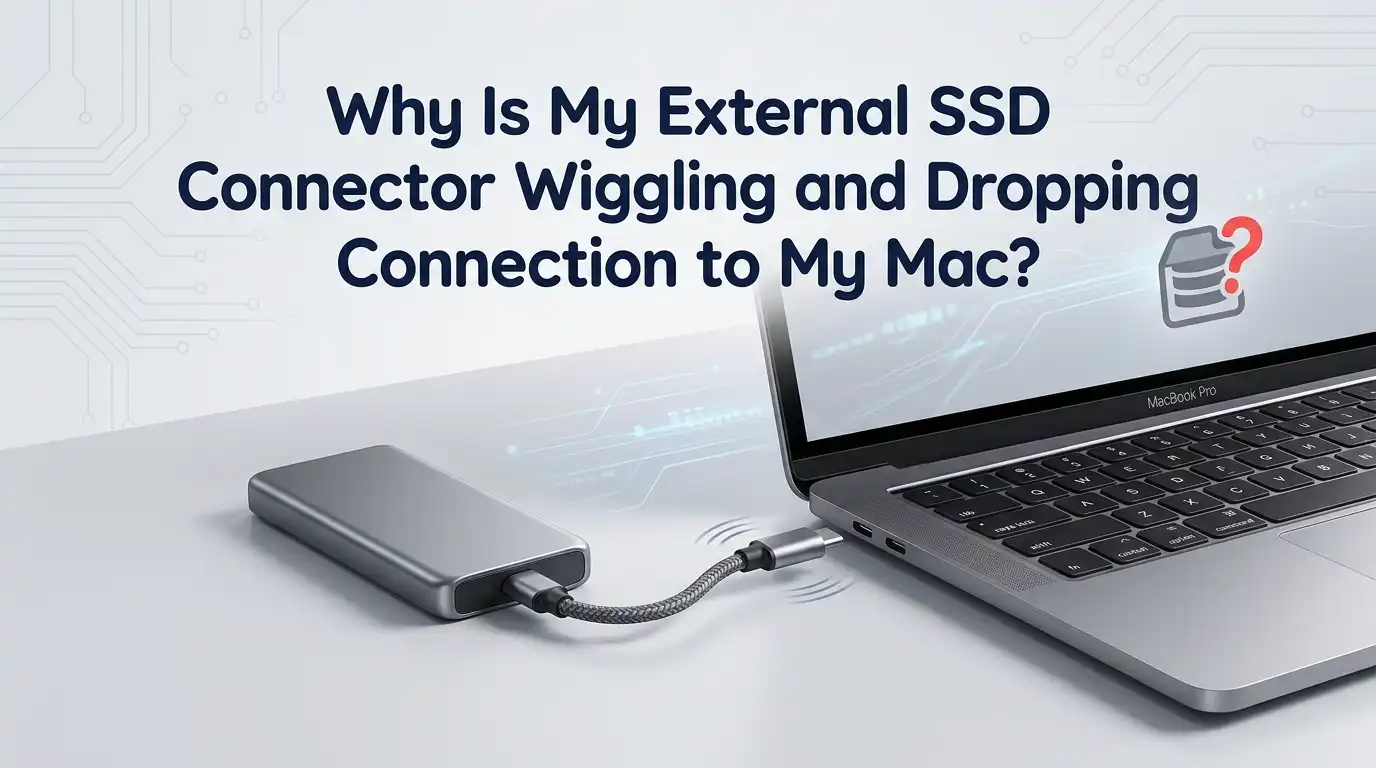
Few things feel more frustrating than transferring a big file to your external SSD, only to watch your Mac throw up that dreaded “Disk Not Ejected Properly” warning.
You touch the cable, it wiggles, and the drive vanishes from Finder again. If this sounds familiar, you are not alone. Loose connectors, dropped drives, and flickering SSDs are some of the most common headaches Mac users face today.
The good news is that most of these problems have simple, practical fixes you can try at home. From cleaning lint out of your USB-C port to switching cables, swapping ports, or using a powered hub, you have plenty of options before booking a Genius Bar appointment.
Key Takeaways
- Dust and lint inside USB-C ports are the number one cause of wiggly connectors. A simple cleaning often solves the issue instantly.
- Cheap or damaged cables drop connections more than people realize. Always test with a certified, data-rated USB-C cable before blaming the Mac.
- Power delivery problems affect bus-powered SSDs heavily. Using a powered USB hub gives your drive the stable voltage it needs to stay mounted.
- Worn USB-C ports on older MacBooks can become loose over time. Switching to a different port or using a short extension cable extends their life.
- macOS sleep settings and background processes sometimes force drives to disconnect. Adjusting Energy Saver preferences keeps your SSD awake during work.
- Formatting issues, outdated firmware, and Spotlight indexing can also trigger drop-offs. A quick reformat or firmware update often clears these glitches for good.
What Causes Your External SSD to Wiggle and Disconnect
A wiggly SSD connection usually points to one of three things: a dirty port, a faulty cable, or a worn connector. Inside every USB-C port sit tiny pins that need clean, firm contact with the cable. Even a small amount of pocket lint can push the connector out of alignment.
Sometimes the SSD itself has a loose internal solder joint, which makes the connector feel wobbly. Other times the cable plug has bent pins or worn shielding.
Power fluctuations from your Mac’s USB controller can also cause the drive to drop without any physical wiggle. Identifying the real cause helps you pick the right fix faster.
Start With the Easiest Fix: Clean Your USB-C Port
Dust, lint, and pocket fluff build up inside USB-C ports much faster than you would expect. This buildup stops the cable from seating fully, which is why the connector feels loose and wiggles. Cleaning the port is free, fast, and works surprisingly often.
Shut down your Mac first. Then use a wooden toothpick or a plastic dental pick to gently scrape the inside walls of the port. Follow that with a quick burst of compressed air held upright.
You can also dip a thin cotton swab in 90 percent isopropyl alcohol and lightly clean the contacts. Let it dry fully before plugging anything back in.
Pros: Costs almost nothing, fixes the problem in minutes, and works for most users.
Cons: Risk of damaging the port pins if you push too hard or use metal tools.
Test With a Different USB-C Cable
The cable is the most overlooked culprit in SSD disconnect issues. Many cables sold today are charge-only, meaning they carry power but no data. Others support USB 2.0 speeds when your SSD needs USB 3.2 or Thunderbolt bandwidth.
Try a known-good, data-rated cable made by a reputable brand. Look for a cable that lists 10Gbps or higher and supports the same standard as your SSD. Short cables, around 0.5 to 1 meter, give the most stable connection because they lose less signal. If the wiggling stops with a new cable, you have found your answer.
Pros: Quick to test, often solves the issue immediately, and improves transfer speeds.
Cons: Quality cables cost more, and finding the right specification can be confusing.
Try Every USB-C Port on Your Mac
Not every USB-C port on your Mac is equal. Some ports share controllers, and one worn or damaged port can behave differently from the others. Plug your SSD into each port one at a time and see which feels tightest and most stable.
On MacBook Pros, the ports on one side sometimes share a single bus, which can affect performance under load. If your SSD works fine on the right side but drops on the left, the issue is likely with that specific port. Avoid using the same port for charging and the SSD if possible, since power negotiation can interrupt the drive.
Pros: Free, takes only a minute, and helps isolate the faulty port.
Cons: Does not fix the worn port itself, just works around it.
Use a Powered USB Hub for Stability
Bus-powered SSDs rely on your Mac to deliver steady voltage through the USB-C port. When your Mac is busy charging, running heavy apps, or feeding multiple peripherals, the SSD may not get enough power. This causes random disconnects even when the cable is firm.
A powered USB hub solves this by giving the SSD its own dedicated power source. Plug the hub into the wall, connect your SSD to the hub, then connect the hub to your Mac. This setup also protects your Mac’s USB-C port from constant plugging and unplugging wear.
Pros: Stops power-related drops, extends port life, and supports multiple drives.
Cons: Adds another device on your desk and costs extra money.
Adjust Your Mac’s Energy Saver Settings
macOS can put external drives to sleep to save power. While this sounds helpful, it often causes SSDs to disconnect at the wrong moment, especially during long transfers or backups. Turning this setting off keeps your drive awake and prevents surprise drops.
Open System Settings, click on Battery, then choose Options. Look for the setting called “Put hard disks to sleep when possible” and switch it off. Do the same under the Power Adapter tab if you have one. This small change often fixes intermittent disconnects that seem to happen randomly throughout the day.
Pros: Simple toggle, no extra hardware needed, fixes random sleep-related drops.
Cons: Slightly higher battery use, and may not help if the issue is physical.
Reset NVRAM and SMC on Your Mac
If your SSD drops connection across multiple ports and cables, your Mac’s low-level settings might be the issue. NVRAM and SMC handle hardware management, including USB power delivery. Resetting them can clear glitches that cause peripherals to disconnect.
For Intel Macs, shut down and hold Command, Option, P, and R together while powering on. Hold until you hear the second startup chime. To reset the SMC, shut down, then hold Shift, Control, Option, and the power button for ten seconds. Apple Silicon Macs reset these automatically with a simple restart, so just reboot.
Pros: Fixes deep hardware management issues, takes only a few minutes.
Cons: Does not work on Apple Silicon the same way, and only helps with software-level glitches.
Check Your SSD With Disk Utility and First Aid
Sometimes the SSD itself has file system errors that cause it to unmount unexpectedly. macOS includes a free tool called Disk Utility that can scan and repair these problems. Running First Aid takes just a few minutes and often resolves stubborn disconnect issues.
Open Disk Utility from your Applications folder. Select your external SSD in the sidebar, then click the First Aid button at the top. Let the scan finish without unplugging the drive. If errors show up, Disk Utility will try to repair them. You may need to reformat the drive if the damage is severe.
Pros: Built into macOS, free, and catches hidden file system errors.
Cons: Reformatting erases your data, so back up first.
Update Your SSD’s Firmware
Many SSD brands like Samsung, SanDisk, Crucial, and WD release firmware updates that fix connection bugs. Older firmware often struggles with newer versions of macOS, especially after major updates like Sonoma or Sequoia. Checking for an update is a smart step when nothing else works.
Visit your SSD manufacturer’s official website and search for their support or downloads page. Download the firmware tool made for Mac, then follow the on-screen instructions. Keep your drive plugged in directly during the update, never through a hub. After the update finishes, restart your Mac and test the SSD again.
Pros: Fixes manufacturer-known bugs, improves compatibility and speed.
Cons: Some brands only release Windows tools, and updates carry a small risk if interrupted.
Reformat Your SSD With the Right File System
The file system on your SSD affects how reliably it talks to macOS. Drives formatted as exFAT sometimes drop connections more than those formatted as APFS or Mac OS Extended. If you only use the drive with Macs, switching file systems can help.
Back up your data first. Then open Disk Utility, select the SSD, click Erase, and choose APFS with a GUID Partition Map. APFS works best for SSDs on modern Macs because it handles power loss and reconnects more gracefully. Use exFAT only if you need to share the drive with Windows machines too.
Pros: Improves stability and speed, fixes file system corruption.
Cons: Erases all data, and APFS drives are not readable on Windows without extra software.
Inspect the SSD Connector for Physical Damage
If your SSD connector feels loose even with a brand new cable, the port on the SSD itself may be damaged. Drops, bent pins, or solder joints breaking loose inside the drive housing are common after heavy use. Look closely at the port with a flashlight.
Check if the inner tongue of the USB-C port sits centered and straight. Wiggle the cable gently and watch the port, not the cable. If the port moves with the cable, the solder is broken and the SSD needs professional repair or replacement. Stop using the drive heavily until you back up your data.
Pros: Helps you spot serious hardware failure before data loss.
Cons: Repair often costs more than a new SSD, and DIY fixes risk total failure.
Try Your SSD on Another Computer
Testing your SSD on a different Mac or even a Windows PC quickly tells you where the problem lies. If the drive works perfectly on another machine, your Mac’s port or settings are the issue. If it still wiggles and drops, the SSD or its cable is the real culprit.
Borrow a friend’s computer for a few minutes if you can. Use the same cable you have been using to keep the test fair. Try a second cable on the other machine too. This simple test saves hours of guesswork and helps you decide whether to repair the Mac, the SSD, or just replace the cable.
Pros: Pinpoints the faulty device fast, costs nothing.
Cons: Needs access to another computer, and results can still be confusing if both devices have issues.
When to Visit an Apple Service Provider
If your USB-C port wiggles with every cable and SSD you try, the port itself is likely worn or damaged. MacBook USB-C ports can loosen over time, especially on heavily used machines. At this point, a professional repair is your safest option.
Apple authorized service providers can replace the port assembly, though it often involves replacing the entire logic board on newer Macs. Get a written estimate first because repairs can be expensive. If your Mac is still under AppleCare or warranty, the fix may be free. Otherwise, weigh repair costs against buying a new Mac.
Pros: Permanent fix done by certified technicians, restores full function.
Cons: Expensive, slow, and not always worth it on older Macs.
Frequently Asked Questions
Why does my external SSD keep disconnecting only when I move my Mac?
Movement loosens a worn cable or a dirty port. Clean the port with compressed air and try a shorter, stiffer USB-C cable. If the problem continues, the port itself may be worn and need professional repair.
Can lint really cause USB-C disconnects on a Mac?
Yes, lint is one of the most common causes. Even a small amount blocks the cable from seating fully, which leads to wiggling and dropouts. A wooden toothpick and compressed air usually clear it out safely.
Is it safe to use isopropyl alcohol inside a USB-C port?
Yes, as long as you use 90 percent or higher and apply it sparingly with a thin cotton swab. Shut down your Mac first and let the port dry completely before plugging anything back in.
Does a powered USB hub really help an SSD stay connected?
Absolutely. Powered hubs give your SSD steady voltage that your Mac may not always supply, especially during heavy tasks. They also protect your Mac’s USB-C ports from wear caused by frequent plugging.
Should I format my SSD as APFS or exFAT for my Mac?
Use APFS if you only use the drive with Macs because it offers better speed and stability. Choose exFAT only when you need to share files with Windows machines too. Always back up before reformatting.
Can resetting NVRAM fix my SSD disconnection issue?
It can help if the problem is caused by stuck hardware settings. NVRAM reset is quick and safe on Intel Macs. Apple Silicon Macs handle this automatically, so a simple restart often does the same job.
When should I replace my SSD instead of repairing it?
Replace it when the connector wobbles on the SSD side, when First Aid keeps finding errors, or when firmware updates fail. Repairs often cost more than a new drive, and a fresh SSD gives you better speed and reliability.
Hi, I’m Minnie Cole, the creator of The Output Lab — a space where I share my passion for all things tech. I spend my days exploring the latest gadgets, devices, and electronics on Amazon, putting them through real-world testing so you don’t have to.