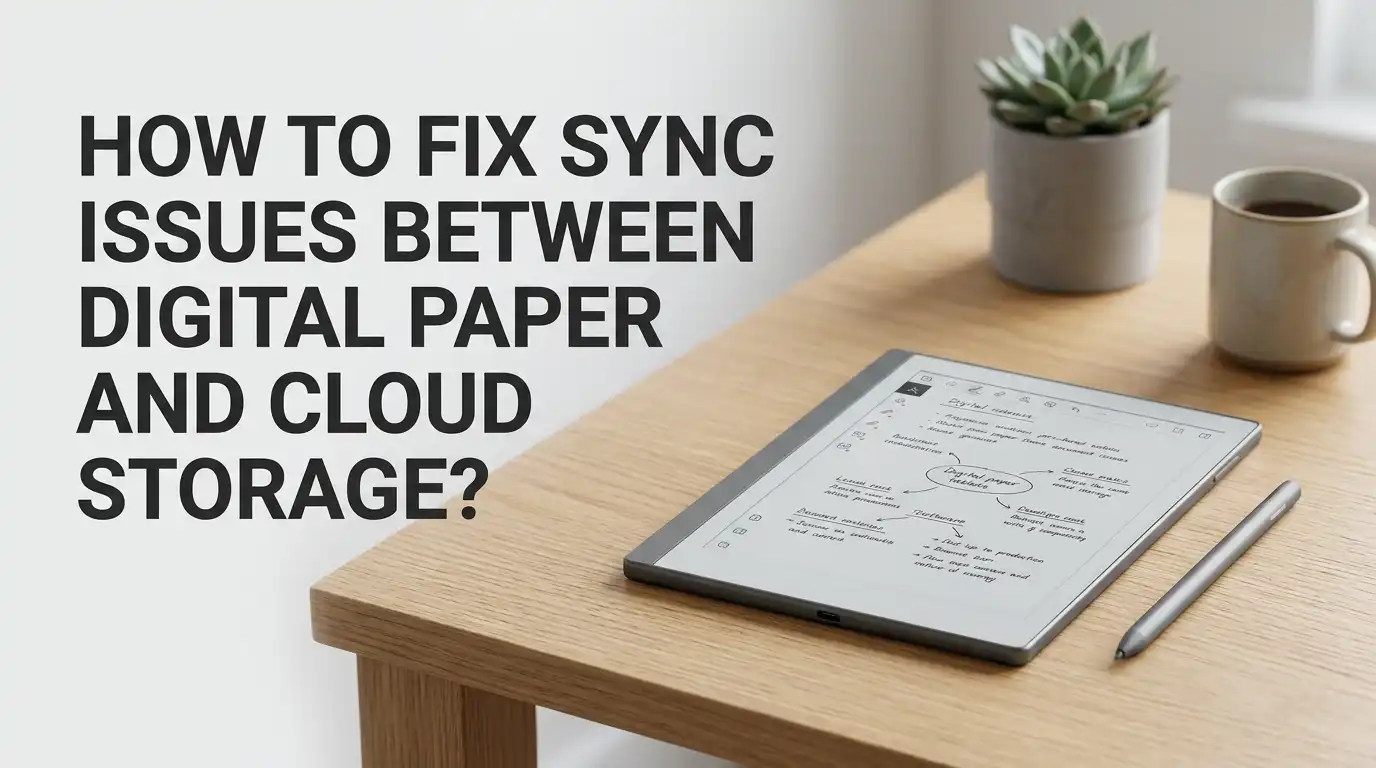
How To Fix Sync Issues Between Digital Paper And Cloud Storage?
Digital paper tablets have changed how we take notes, sketch ideas, and read documents. Devices like reMarkable, Supernote, Boox, and Montblanc Digital Paper promise smooth cloud syncing across phones, laptops, and desktops.
But sometimes that promise breaks. Your notes refuse to upload. Your PDFs vanish from the cloud folder. The sync wheel spins forever.
If you have ever stared at a stuck sync icon, you know how frustrating it feels. Your work feels trapped on one device. The good news is that most sync problems have simple fixes. You do not need to be a tech expert to solve them. You just need to know where to look.
Key Takeaways
- Most sync failures come from network problems. A weak Wi-Fi signal, a busy router, or a firewall block stops your digital paper from talking to the cloud server. Always check your internet first before changing any setting.
- Outdated firmware breaks sync more often than people think. Manufacturers push updates to fix server changes, security patches, and API shifts. Running an old version can lock you out of the cloud completely.
- Time and date settings matter a lot. Many cloud services reject devices with the wrong clock because tokens expire fast. Set your time to automatic to avoid hidden sync errors.
- Storage limits cause silent sync failures. If your Google Drive, Dropbox, or device storage is full, new files have nowhere to go. Always keep at least 10 percent free space on both sides.
- Account permissions can quietly break. A password change, a revoked token, or a removed app permission stops sync without showing a clear error. Reconnect the account when nothing else works.
- Manual sync is your friend. When automatic sync fails, a manual push or pull often clears the queue and gets files moving again.
Check Your Wi-Fi Connection First
A bad Wi-Fi link is the top reason for sync failure. Your digital paper sends data in small packets, and even short drops can break the upload. Start by checking the signal strength on your device. If the icon shows one or two bars, move closer to the router.
Open a browser on another device and load a website to test the internet speed. If pages load slowly, the problem is your network, not your tablet. Restart your router by unplugging it for thirty seconds. Then turn Wi-Fi off and on again on your digital paper.
Pros of fixing Wi-Fi first: it is free, fast, and solves around half of all sync issues. Cons: a router restart can take five minutes, and you may lose connection on other devices during that time.
Update Your Device Firmware
Old firmware causes sync to fail in silent ways. Cloud providers update their servers every few months, and your tablet must match those changes. Always run the latest firmware version released by your brand.
Go to the settings menu on your digital paper. Tap on Software or System Update. Let the device check for new versions and install them while plugged in. Do not turn off the tablet during the update. A broken update can lock the device.
Pros of updating firmware: you get bug fixes, new features, and better cloud support. Cons: some updates have introduced new bugs, so read user forums before you install a brand new release. If your sync was working fine, wait a week after a release before updating.
Verify Your Cloud Account Login
Cloud accounts log you out without warning. A password change, a security alert, or a new login from another device can break the link. Your digital paper still shows the account as connected, but sync stops in the background.
Open the cloud settings on your tablet. Tap Disconnect or Sign Out, then sign back in with your full email and password. Type the password by hand instead of copying it to avoid hidden spaces. Enable two factor authentication only if your device supports it.
Pros of reconnecting: it refreshes the access token and clears expired permissions. Cons: you may need to redo folder mappings, and pending uploads in the queue can get lost. Back up any unsynced notes to a USB drive before you sign out.
Set The Correct Time And Date
This fix sounds small, but it solves a huge number of sync problems. Cloud servers reject any device with a clock that is off by more than five minutes. Your tablet looks fine to you, but the server treats it like a security risk.
Go to Settings, then Date and Time. Turn on Automatic Time or Network Time. Pick the correct time zone for your location. Restart the device after you change the setting.
Pros of fixing the clock: it is a one minute fix that solves many hidden sync errors. Cons: some older digital paper models lose the time setting after a battery drain, so you may need to reset it again later. Reddit users have reported this exact fix solving Supernote and reMarkable sync failures.
Free Up Storage Space On Both Sides
Sync stops the moment either side runs out of room. Your digital paper has limited internal storage, and your cloud plan has a quota. Files cannot move into a full space.
Check the storage indicator on your tablet. If you are above ninety percent, delete old PDFs or move them to a backup drive. Then log into your cloud account through a web browser. Empty the trash folder too, because deleted files often still count against your quota.
Pros of cleaning storage: faster sync, longer device life, and fewer errors. Cons: deciding what to delete takes time, and you may regret removing files later. Keep a local backup folder on your computer before you delete anything from the cloud.
Force A Manual Sync
Automatic sync runs on a timer, often every five or ten minutes. When the timer gets stuck, the queue builds up and nothing moves. A manual sync clears the queue and pushes everything through at once.
Open your file list on the digital paper. Look for a refresh icon, a cloud icon, or a Sync Now button. Tap it and wait a few minutes. Do not lock the screen or close the app during the process.
Pros of manual sync: instant results, easy to do, and works on almost every brand. Cons: it drains battery faster, and large files can take ten minutes or more to upload. If manual sync also fails, the problem is deeper, like network or account trouble.
Restart The Device Properly
A full restart clears memory, closes broken background tasks, and resets the cloud agent. Many users only put the tablet to sleep, which does not fix sync bugs. A real restart means powering off and turning back on.
Hold the power button for ten seconds. Choose Restart or Power Off from the menu. Wait until the screen goes black, then press the power button again to turn it on.
Pros of a restart: it fixes most temporary glitches and takes less than a minute. Cons: you lose unsaved drafts in some apps, and the first sync after restart can take longer than normal. Try a restart before you reset any settings.
Check Firewall And Router Settings
Some home routers block cloud sync without telling you. Parental controls, VPNs, or strict firewall rules can stop your tablet from reaching certain servers. This is common in office and school networks.
Try connecting your digital paper to a phone hotspot. If sync works on the hotspot but not on your home Wi-Fi, the router is the problem. Log into your router admin page and look for blocked devices or content filters.
Pros of checking the router: it solves location based sync failures and improves overall speed. Cons: router menus differ by brand and can confuse new users. If you do not feel comfortable changing router settings, ask your internet provider for help.
Reinstall The Companion App
The companion app on your phone or computer often handles the sync bridge. A broken install can stop syncing even when the tablet works fine. Delete the app and install the latest version from the official store.
Sign in again with the same account you use on the tablet. Allow all permissions when the app asks, including background activity and file access. On iPhone, also check the Background App Refresh setting.
Pros of a fresh install: clears cached errors, updates to the newest code, and resets file permissions. Cons: you may lose offline drafts saved only in the app, and you will need to reconnect cloud services. Always export important notes before you uninstall.
Switch To A Different Cloud Service
Sometimes the cloud provider itself has problems. Google Drive, Dropbox, OneDrive, and brand specific clouds all have outages. If one service keeps failing, switch to another for a while.
Check the status page of your cloud provider first. Search for the service name plus the word status. If you see a red banner, the problem is on their end and you just need to wait. Otherwise, try linking a backup cloud account.
Pros of switching clouds: keeps your work flowing during outages and gives you a backup option. Cons: managing two cloud services costs more money, and notes may get spread across accounts. A user once reported Dropbox working when Google Drive failed on the same Boox device.
Use USB Transfer As A Backup Plan
When nothing else works, plug your digital paper into your computer with a USB cable. Most tablets show up as a regular drive. You can drag and drop files in both directions.
This method skips the cloud completely. It is slow but reliable. Use it to rescue important notes when you have a deadline and sync refuses to cooperate.
Pros of USB transfer: works without internet, no account needed, and never fails because of server errors. Cons: you must remember to do it manually, and you lose the convenience of automatic sync. Keep a USB cable in your bag as a backup tool for travel days.
Contact Official Support With Logs
If you have tried every fix and sync still fails, reach out to the maker of your digital paper. Supernote, reMarkable, Boox, and Montblanc all have support teams that read device logs. Logs show errors that you cannot see in the normal menu.
Go to Settings, then Feedback or Help. Tap Send Logs or Report a Problem. Write a short message that lists what you tried already. A clear report gets faster answers than a vague complaint.
Pros of contacting support: they can spot account level problems and push server fixes. Cons: reply times can stretch to two or three days, and some issues need a device reset. Keep notes of every step you took before you write.
Reset The Device As A Last Resort
A factory reset wipes everything and gives you a clean start. Only do this when nothing else works and support has approved it. You will lose all local data that is not backed up.
Back up every note through USB or any working cloud first. Then go to Settings, find Reset or Erase All Data, and confirm. After the reset, set up Wi-Fi, sign into your cloud, and pair the device again.
Pros of a factory reset: solves deep software problems and clears every hidden error. Cons: takes an hour or more, you must redo all settings, and you may still face the same issue if the cause was external. Treat this step as the final option.
FAQs
Why does my digital paper sync work on Wi-Fi but not on cellular hotspot?
Some carriers block certain cloud ports or throttle background data. Check your hotspot data limit and try a different network to confirm. Most digital paper tablets need stable upload speed, not just download speed.
How long should a normal sync take?
Small notes sync in under thirty seconds. Large PDFs or sketch heavy files can take five to ten minutes. If sync runs longer than fifteen minutes for a single file, something is wrong and you should restart the process.
Can I sync my digital paper with two cloud accounts at once?
It depends on the brand. reMarkable supports Google Drive, Dropbox, and OneDrive together on its Connect plan. Supernote allows multiple providers in newer firmware. Check your device settings to see which combinations work.
Does turning off auto sleep help with sync?
Yes, in many cases. Auto sleep can cut off uploads in the middle. Disable it during large sync jobs, then turn it back on to save battery once the queue is clear.
Will I lose my notes if sync fails for several days?
No, your notes stay safe on the device itself. Cloud sync is a copy, not the only home for your files. Use USB transfer to pull notes off the tablet while you fix the sync problem.
Is it safe to use third party sync tools?
Be careful. Unofficial tools can break with firmware updates and may risk your account security. Stick to the official cloud options listed in your device settings unless you fully trust the third party developer.
Hi, I’m Minnie Cole, the creator of The Output Lab — a space where I share my passion for all things tech. I spend my days exploring the latest gadgets, devices, and electronics on Amazon, putting them through real-world testing so you don’t have to.