
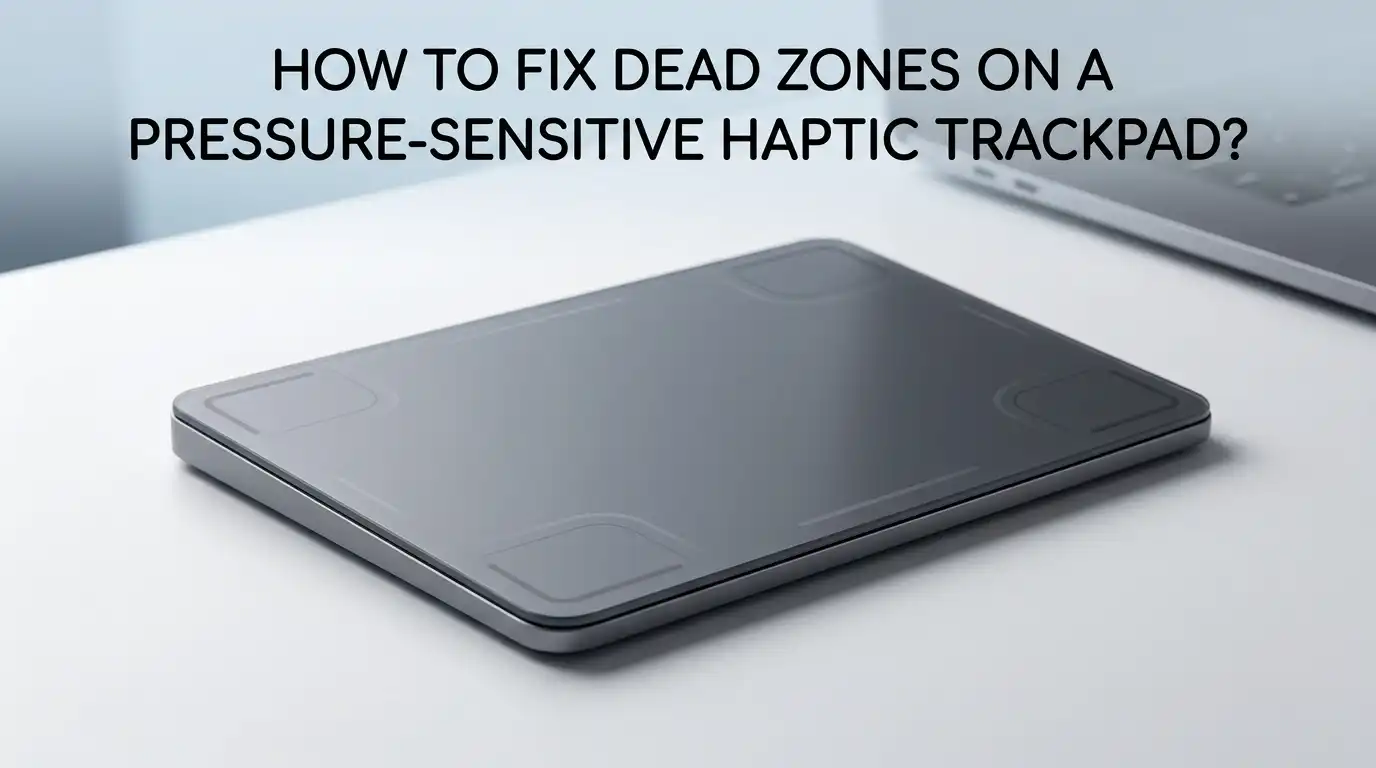
How To Fix Dead Zones On A Pressure-Sensitive Haptic Trackpad?
Your finger glides across the trackpad. Everything feels smooth. Then suddenly the cursor stops. You press harder, but nothing happens. You swipe again, and the pointer jumps across the screen like it just remembered its job.
A dead zone on your pressure-sensitive haptic trackpad feels like a betrayal. You paid for precision, and now you are getting gaps. These unresponsive spots turn simple tasks into frustrating sessions of tapping, pressing, and hoping.
The good news is simple. Most dead zones are not permanent hardware failures. Dirt, static electricity, corrupted settings, or software glitches often cause them. You can fix many of these problems at home with no special tools.
Key Takeaways
- Dead zones often come from physical debris trapped between the trackpad and the chassis. A simple paper cleaning trick has helped thousands of users restore their haptic feedback. Slide a thin strip of paper along the edges of your trackpad to dislodge crumbs, dust, or hair that blocks the pressure sensors.
- Static electricity buildup creates phantom dead zones on poorly grounded trackpads. This issue is common on certain HP, Dell, and other Windows laptops. Shutting down the laptop completely for 30 minutes allows the built-up charge to dissipate. Some users solve this permanently by adding a grounding wire inside the chassis.
- Corrupted preference files cause software-level dead zones on MacBooks. Deleting the trackpad property list files from the Library folder forces macOS to rebuild them with factory defaults. This single step fixes nearly 25 percent of all unresponsive trackpad cases.
- Software updates can introduce new bugs that create dead zones. macOS Sequoia 15.1 through 15.3 had known trackpad recognition issues. Rolling back settings, resetting NVRAM, or waiting for a patch update often resolves these problems without any hardware changes.
- A swollen battery pushes upward against the trackpad and creates persistent dead zones. If your laptop rocks on a flat surface or the bottom case bulges, stop using the device immediately. This is a safety hazard. Apple and other manufacturers often cover swollen battery replacement under extended warranty programs.
- Running built-in diagnostic tools confirms whether you face a software problem or a hardware failure. Apple Diagnostics and Windows hardware tests give you error codes that clearly identify the source. Use these before you spend money on repairs you might not need.
Understand What Causes Dead Zones on a Haptic Trackpad
A pressure-sensitive haptic trackpad does not have physical moving parts like older clickpads. It uses electromagnetic sensors and a small motor to simulate the feeling of a click.
When you press down, the sensors measure the force. The motor creates a tiny vibration that your finger feels as a click. This system is clever, but it is also sensitive to interference.
Debris is the most common physical cause of dead zones. Small crumbs, dust particles, and even strands of hair can slip into the narrow gap between the trackpad surface and the laptop chassis.
Once inside, these particles block the sensor from detecting your finger. The result is a spot that feels completely dead while the rest of the trackpad works fine.
Static electricity creates a different kind of dead zone. As your fingers move across the surface, friction builds up a charge. If the trackpad lacks proper grounding, this charge confuses the capacitive sensors.
The Paper Cleaning Method for Physical Debris
This method sounds too simple to work. Yet users across Reddit, iFixit, and Apple support forums have confirmed its effectiveness since at least 2022 and continue to report success through 2026.
The idea is straightforward. You slide a thin strip of plain paper into the gap around the edges of your trackpad. The paper catches and removes debris that blocks the pressure sensors.
Take a standard sheet of printer paper. Cut or tear a strip about one inch wide. Insert one corner of the strip into the gap along the bottom edge of the trackpad. Push gently until you feel the paper slide about half an inch underneath.
Move the paper slowly from left to right along the entire bottom edge. Repeat this motion several times. Then do the same along the left edge, the right edge, and the top edge.
You may feel resistance at certain spots. That resistance often signals the exact location of the debris causing your dead zone. Work the paper back and forth in that specific area. Do not force the paper too deep. You want to sweep debris out, not push it further inside.
Shut Down Completely to Discharge Static Buildup
Static electricity behaves like an invisible gremlin inside your trackpad. As you move your finger, friction generates charge.
When that charge has nowhere to go, it interferes with the capacitive sensing grid. The trackpad develops ghost dead zones that appear, vanish, and shift position. This problem affects many Windows laptops, especially HP Omen and Pavilion models.
A complete shutdown often clears the charge. Close all your applications. Shut down the laptop fully, do not just close the lid or use sleep mode. Unplug the power adapter from the wall.
If your laptop has a removable battery, take it out. Wait for at least thirty minutes. This waiting period gives the static charge time to dissipate naturally into the surrounding air.
During this wait, press and hold the power button for fifteen seconds while the laptop is unplugged. This drains any residual charge from the capacitors on the motherboard.
Pros: Completely free, no disassembly needed, works across all laptop brands, also clears other static-related glitches.
Cons: Takes thirty minutes or more, does not fix grounding design flaws, problem may return if static rebuilds, not effective for physical debris or swollen batteries.
Delete and Rebuild Trackpad Preference Files on macOS
Your Mac stores all trackpad settings in special property list files. These plist files hold calibration data, gesture preferences, and pressure sensitivity maps. When a file becomes corrupted after a system crash or a failed update, the trackpad may lose awareness of certain zones. The hardware scans fine, but the software ignores touches in those areas.
Open Finder and click Go in the menu bar. Hold the Option key to reveal the Library folder and click it. Navigate to the Preferences folder. Look for two specific files. The first is named com.apple.preference.trackpad.plist. The second is named com.apple.AppleMultitouchTrackpad.plist. Move both files to the Trash. Do not delete anything else in this folder.
Restart your Mac immediately after deleting the files. During startup, macOS detects that the preference files are missing. It creates fresh copies with factory default values. Your custom gestures and scrolling direction will reset, so you will need to reconfigure those in System Settings afterward.
Pros: Simple file deletion, no special tools, forces a clean software reset, preserves all other user data.
Cons: Loses custom trackpad settings, only works on macOS, does not fix hardware or debris issues, requires a restart.
Run Apple Diagnostics to Identify Hardware Failures
Sometimes the trackpad sensors genuinely fail. A loose ribbon cable, a damaged logic board trace, or a faulty Taptic Engine can create permanent dead zones. Before you pay for a repair, run Apple Diagnostics. This built-in tool tests every hardware component and reports error codes.
Shut down your Mac completely. Disconnect all external devices except the power adapter if needed. For Apple Silicon Macs, press and hold the power button until the startup options screen appears.
Then press and hold Command plus D. For Intel Macs, turn on the Mac and immediately press and hold the D key. Keep holding until you see a language selection screen or a progress bar.
The diagnostic test runs for about three to five minutes. Pay attention to any reference codes that appear. Codes starting with PPT indicate a trackpad hardware problem. Codes starting with VFD point to a logic board issue that affects the trackpad. Write down the exact code before you contact support.
Pros: Free built-in tool, provides official hardware error codes, helps avoid unnecessary repairs, recalibrates trackpad in some cases.
Cons: Requires a restart and disconnecting peripherals, does not fix software or debris issues, Intel Macs need an internet connection for the test.
Reset NVRAM and SMC on Intel MacBooks
Non-volatile random access memory stores low-level settings that your trackpad depends on. These include the default click pressure, the gesture recognition thresholds, and the sensor polling rate. When NVRAM data becomes garbled, the trackpad may misinterpret touch input and create dead zones in its detection grid.
Shut down your Intel MacBook. Press the power button, then immediately press and hold Option plus Command plus P plus R. Keep holding all four keys for about twenty seconds. You may hear a startup chime twice, or see the Apple logo appear and disappear. Release the keys after the second chime. Let the Mac boot normally and test your trackpad.
Apple Silicon Macs handle NVRAM and SMC functions differently. A simple shutdown and restart automatically refreshes these low-level settings. You do not need to press any key combinations. Just shut down, wait thirty seconds, and power back on.
Pros: Clears deep system caches, fixes power-related sensor glitches, well-documented Apple support procedure, free to perform.
Cons: Only works on Intel Macs, resets some system preferences like speaker volume and time zone, may not fix hardware problems.
Update or Reinstall Precision Touchpad Drivers on Windows
Windows laptops that use Microsoft Precision Touchpad drivers have their own set of software controls. An outdated or corrupted driver can create gaps in the touch detection grid. The trackpad hardware is fine, but the driver fails to process input from certain regions of the surface.
Open Device Manager by right-clicking the Start button and selecting it from the menu. Expand the Human Interface Devices category.
Look for an entry labeled HID-compliant touch pad or Precision Touchpad. Right-click this entry and select Update driver. Choose Search automatically for drivers. Windows will check online for a newer version.
If no update is available, try uninstalling the driver instead. Right-click the same entry and select Uninstall device. Check the box that says Delete the driver software for this device. Restart your laptop. Windows will detect the trackpad on boot and install a fresh driver automatically.
Pros: Quick driver refresh, no cost, often fixes update-related dead zones, manufacturer tools add calibration options.
Cons: Only applies to Windows laptops, requires internet access, some laptops need specific driver versions, uninstalling the wrong device causes more issues.
Disable Force Click and Adjust Pressure Sensitivity
The pressure sensitivity system in a haptic trackpad can become miscalibrated over time. When the baseline pressure threshold drifts, the trackpad stops detecting lighter presses.
This creates what feels like a dead zone, even though the sensors still work. Adjusting the click pressure settings often restores full coverage.
On a Mac, open System Settings and click Trackpad. Look for the Click pressure slider under the Point and Click tab. Set it toward the Light side. This tells the trackpad to register clicks from gentler presses.
Dead zones that only appear during light tapping may vanish with this change. Also toggle Force Click and haptic feedback off, wait a few seconds, and toggle it back on. This forces the Taptic Engine to recalibrate its feedback pattern.
Pros: No files deleted, instant results, can fine-tune to personal preference, works on both macOS and Windows.
Cons: May not help with physical debris or static issues, overly light settings cause accidental clicks, some laptops lack haptic adjustment controls.
Safe Mode Boot to Isolate Software Conflicts
Third-party applications can interfere with trackpad drivers in subtle ways. Screen recording tools, mouse enhancement utilities, and gaming overlay software sometimes hook into input drivers and cause conflicts. These conflicts create intermittent dead zones that appear and disappear depending on which apps are running.
Booting into Safe Mode loads only the essential system processes. All third-party extensions, startup items, and non-Apple or non-Microsoft drivers stay disabled. If your trackpad works perfectly in Safe Mode, you know a third-party app caused the problem.
On Apple Silicon Macs, shut down, then press and hold the power button until the startup options screen appears. Select your startup disk, hold the Shift key, and click Continue in Safe Mode.
On Intel Macs, restart and immediately hold the Shift key until the login screen appears. Log in and test the trackpad thoroughly. Pay attention to the areas where you normally experience dead zones.
Clean the Trackpad with Isopropyl Alcohol for Stubborn Grime
Finger oils, hand lotion residue, and environmental grime build up on the trackpad surface over weeks of use. This film reduces the electrical conductivity between your finger and the capacitive sensors. The trackpad reads these areas as less responsive. Light touches go undetected, and dead zones appear.
Power down your laptop completely. Dampen a soft microfiber cloth with 70 percent isopropyl alcohol. The cloth should feel barely wet, not dripping. Never pour alcohol directly onto the trackpad. Wipe the entire surface gently in a circular motion. Pay extra attention to the edges where oils accumulate most.
For debris stuck in the gap between the trackpad and the chassis, use a cotton swab lightly moistened with isopropyl alcohol. Run the swab along the edges. The alcohol loosens sticky residue that plain paper cannot remove.
Some users on the MacBook repair subreddit reported that placing a few drops of isopropyl alcohol directly on the trackpad edge and working it into the gap restored their haptic feedback after paper alone failed.
Inspect for a Swollen Battery Pushing Against the Trackpad
Dead zones that feel physical, where you cannot press down at all in a certain area, often point to a swollen battery. Lithium-ion batteries expand as they age. The battery sits directly beneath the trackpad in most laptop designs. As it swells, it pushes upward and blocks the pressure sensors from detecting force.
Place your laptop on a perfectly flat desk. Look at it from the side at eye level. Does the bottom case bulge outward? Gently spin the laptop. Does it rock or wobble? Press lightly around the edges of the bottom case. Does the metal feel tight everywhere or does it give way in the center? These are warning signs of battery swelling.
Next, open the laptop lid and look at the trackpad. Is it raised above the palm rest? A healthy trackpad sits flush or very slightly recessed. A swollen battery pushes it up visibly. Try clicking in different areas. If the center feels rock solid with no give while the corners still click, the battery is likely the cause.
Pros: Clear diagnostic signs, manufacturer often covers replacement, fixes the root cause permanently.
Cons: Requires professional service, laptop unusable until repaired, potential safety hazard if ignored, repair can take several days.
Add a Grounding Wire for Persistent Static Dead Zones
Some laptop models ship with a design flaw. The trackpad assembly lacks an adequate connection to the motherboard ground plane. Static electricity builds up with every finger movement and has nowhere to drain.
Eventually the charge overwhelms the sensors and dead zones appear. This fix requires opening your laptop and adding a simple wire.
The HP Omen community documented this fix extensively. Users attach a thin insulated wire between a metal mounting tab on the trackpad and a grounded screw on the motherboard or chassis frame.
This creates a direct path for static charge to flow to ground. After the mod, dead zones that had plagued the laptop for months disappeared permanently.
This repair involves removing the bottom cover, which may void your warranty. Check your warranty terms before proceeding. If you are comfortable with small electronics, gather a small Phillips screwdriver, a piece of thin wire about two inches long, and electrical tape.
Pros: Permanent solution for static-related dead zones, costs almost nothing, community-tested on multiple laptop brands.
Cons: Voids warranty on most laptops, requires opening the chassis, risk of short-circuiting components, not relevant for MacBooks or properly grounded models.
Replace the Trackpad Assembly as a Last Resort
When every software fix, cleaning method, and calibration trick fails, the trackpad hardware itself may be defective. The pressure sensors can wear out. The haptic motor can fail.
The flexible ribbon cable connecting the trackpad to the motherboard can develop microscopic cracks that break certain signal lines while leaving others intact.
This is the most expensive and invasive fix. If your laptop is under warranty or covered by AppleCare, contact official support first.
Many trackpad replacements cost nothing under warranty. Out of warranty, Apple charges between 299 and 699 dollars for trackpad replacement depending on the model. Third-party repair shops charge between 150 and 400 dollars.
Before you commit to replacement, try connecting an external mouse. If the external mouse works perfectly and the dead zones only appear on the built-in trackpad, the issue is isolated.
Pros: Guaranteed fix for hardware failures, restores full haptic functionality, may be free under warranty.
Cons: Expensive out of warranty, takes days at a repair center, third-party parts may lack original feel, requires professional installation.
Prevent Future Dead Zones Through Daily Habits
The best repair is the one you never need. A few daily habits can keep your pressure-sensitive trackpad working flawlessly for years. These small actions prevent the three main causes of dead zones: debris, static, and surface contamination.
Keep your hands clean before using the trackpad. Wash off hand lotion, food grease, and sweat. These substances transfer to the surface and create a film that reduces touch sensitivity.
Wipe the trackpad with a dry microfiber cloth at the end of each day. This removes the day’s oil buildup before it hardens into stubborn grime.
Avoid eating near your laptop. Crumbs are the number one source of debris-related dead zones. Even tiny particles work their way into the edge gap and block sensors. If you must snack while working, close the laptop lid or use an external keyboard and mouse to keep food away from the built-in trackpad.
FAQs
Why does my trackpad have dead zones only when running on battery power?
This pattern strongly suggests a power management issue or a grounding problem. When your laptop runs on battery, the trackpad may receive slightly lower voltage. If the sensors are already borderline, this voltage drop creates dead zones. Plugging in the charger restores full voltage and the dead zones vanish. Try recalibrating your battery by draining it completely, then charging to full without interruption. If the problem persists, the battery or the trackpad power circuit may need inspection by a technician.
Can a screen protector or a case cause trackpad dead zones?
Yes, indirectly. Some laptop cases use magnets to hold the lid shut. Strong magnetic fields near the trackpad can interfere with the haptic motor and the pressure sensors. If your dead zones started after you installed a new case with magnetic closures, remove the case and test the trackpad. Screen protectors on the display itself do not affect the trackpad. But a thick keyboard cover that presses against the trackpad when the lid is closed can cause calibration drift over time.
My dead zones appeared after a macOS update. Should I downgrade?
Downgrading macOS is complex and often not recommended. Instead, try the preference file deletion method described above. This forces a clean recalibration under the new operating system version. Also turn off Force Click, restart, and turn it back on. Most update-related trackpad issues resolve within one or two minor patch updates from Apple. Check Software Update regularly and install the latest available version before considering a downgrade.
How do I know if the dead zone is from debris or a hardware failure?
The debris test is easy and free. Slide a strip of paper into the trackpad edges and move it back and forth. If the dead zone changes location, shrinks, or temporarily disappears during or after the paper cleaning, debris was the cause. If the dead zone stays in exactly the same spot regardless of cleaning, you likely face a hardware sensor failure. Run Apple Diagnostics or the Windows hardware troubleshooter to confirm.
Will a factory reset fix my trackpad dead zones?
A factory reset is an extreme step. It erases all your data and installed applications. Try every other method in this guide first. A factory reset will fix dead zones caused by deeply corrupted system files or malware. But it will not fix physical debris, static buildup, swollen batteries, or damaged sensors. Back up your data completely before you consider this option. Test the trackpad in Safe Mode first. If it works in Safe Mode but not in normal mode, a clean operating system reinstall is a more targeted solution than a full factory reset.
Hi, I’m Minnie Cole, the creator of The Output Lab — a space where I share my passion for all things tech. I spend my days exploring the latest gadgets, devices, and electronics on Amazon, putting them through real-world testing so you don’t have to.