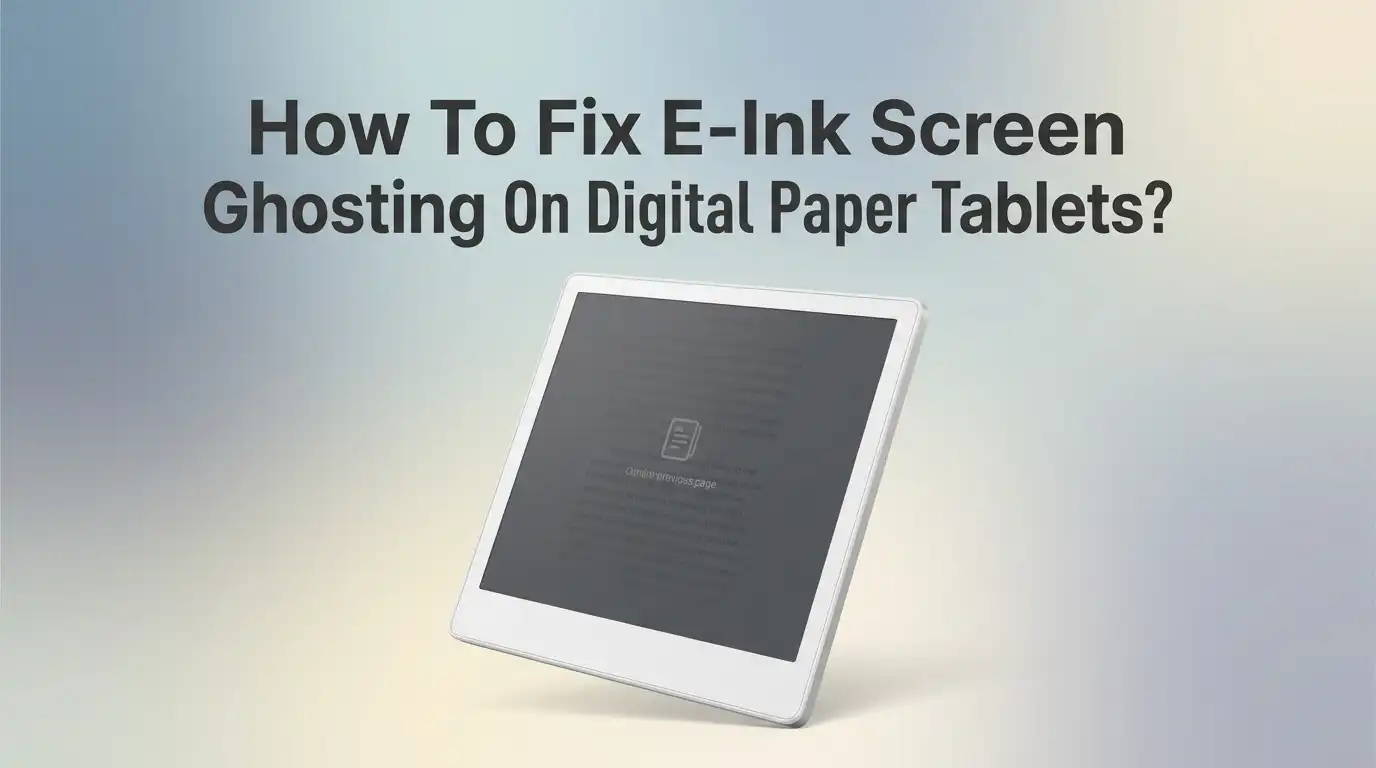
How To Fix E-Ink Screen Ghosting On Digital Paper Tablets?
You pick up your digital paper tablet, flip to a fresh page, and notice something odd. Faint outlines from your last note still linger on the screen. Those pale shadows are called ghosting, and almost every e-ink user runs into them.
The good news is simple. Ghosting is fixable, and most fixes take only a few seconds. This guide breaks down what causes ghosting and gives you clear, practical steps to clear it.
You will learn which settings to change, which habits to build, and when the problem points to something bigger. By the end, you will treat ghosting as a minor annoyance instead of a dealbreaker. Let us get your screen looking crisp again.
In a Nutshell:
- Ghosting is normal, not a defect. It happens because e-ink particles do not always reset fully during a screen update. Every e-ink device shows some level of it.
- A full refresh is your best friend. A quick black-and-white flash wipes the screen clean and removes almost all visible ghosting in one step.
- Refresh mode matters most. Switching from a fast mode to a Normal or high-quality mode trades a little speed for a much cleaner display.
- Set a full refresh interval. Tell your tablet to fully clear the screen every one to five page turns so residue never builds up.
- Environment and battery affect ghosting. Cold rooms and low battery make particles move slowly, which leaves more shadows behind.
- Firmware updates fix a lot. Manufacturers tune their refresh logic over time, so keeping your device current often solves stubborn ghosting for free.
What Is E-Ink Ghosting And Why Should You Care?
E-ink ghosting is the faint leftover image you see after your screen updates. It looks like a pale shadow of the previous page, sitting behind your new content. You care about it because it hurts readability and breaks your focus.
Your e-ink screen holds tiny capsules filled with black and white particles. These particles move up or down to form text and images. When they do not move all the way, traces of the old image stay behind. That leftover trace is ghosting.
It shows up most during fast page turns, dark images, and handwriting. It is not a crack or a hardware fault in most cases. It is simply how the technology works. Understanding this helps you stay calm and pick the right fix instead of panicking about a broken device.
Why Does Ghosting Happen On Digital Paper Tablets?
Ghosting comes down to particle movement. Each screen update sends a voltage pattern that pushes particles into place. Sometimes the push is not strong enough, so a few particles stay stuck between positions.
This happens most during partial refreshes. A partial refresh only updates the pixels that change, which keeps things fast but leaves old ones untouched. Over many updates, residue piles up and becomes visible.
The type of content also plays a role. Grayscale photos, maps, and dense sketches force particles through complex shifts. If the next update does not fully clear them, shadows remain. Color e-ink screens ghost more because they add extra layers on top of the base panel.
Knowing the cause points you straight to the cure. Most ghosting fixes work by forcing a cleaner, more complete particle reset. That is the core idea behind every method below.
How To Do A Full Screen Refresh (The Fastest Fix)
A full screen refresh is the quickest way to clear ghosting. Your screen flashes black, then white, then loads your content clean. This flash forces every particle to move through its full charge, wiping away any leftovers.
Most tablets offer a refresh button somewhere in the drop-down menu or floating toolbar. Tap it, wait one second, and the ghosting disappears. This is the single most reliable fix you have.
How to do it: Swipe down from the top of the screen to open your control panel. Look for a refresh or reload icon. Tap it once. Your screen flashes and clears.
Pros: It is instant, free, and works on every e-ink device. Cons: The flash feels a little disruptive, and doing it too often uses slightly more battery. Still, for a fast fix, nothing beats a manual full refresh.
How To Change Your Refresh Mode For Cleaner Text
Most digital paper tablets offer several refresh modes. These modes control the balance between speed and clarity. Picking the right one solves ghosting before it even starts.
Normal Mode gives the cleanest display. It fully redraws the screen after each page turn, so text stays crisp with minimal shadows. Use it for reading books, notes, and static pages.
Speed Mode turns pages faster but leaves subtle ghosting. A2 Mode is fastest of all and best for scrolling websites, but it shows the most residue. Match the mode to your task.
How to do it: Open your system control panel, find the refresh mode setting, and choose Normal or the highest quality option for reading and writing.
Pros: You fix ghosting without touching the screen again. Cons: Cleaner modes turn pages a bit slower, which some fast readers dislike. For most people, Normal Mode is the sweet spot.
How To Set Automatic Full Refresh Intervals
Manual refreshing works, but doing it by hand gets tiring. A smarter move is to set an automatic full refresh interval. Your tablet then clears the screen on its own after a set number of page turns.
This stops ghosting from building up quietly. Instead of waiting until shadows annoy you, the device wipes the slate clean on a schedule you choose.
Most devices let you pick a refresh every one, three, or five pages. A lower number means a cleaner screen but more frequent flashing. A higher number means fewer flashes but a little more residue.
How to do it: Go into your reading app settings or system display settings. Find the “refresh every X pages” option. Start with every three pages and adjust to taste.
Pros: It works hands-free and keeps clarity steady. Cons: Frequent flashes can feel distracting during long reading sessions. Test a few intervals to find your comfort zone.
How To Use Deep Refresh Or Regal Refresh Modes
Some tablets include advanced refresh options built to fight ghosting directly. Two common names are Deep Refresh and Regal Refresh. Both work harder than a standard update to clear stubborn shadows.
Deep Refresh gives a stronger full-screen clear after each page turn. It shines when you read comics, view color images, or scroll through dense graphics. These content types leave the worst ghosting, so the extra power pays off.
Regal Refresh is a smarter waveform system. It manages particle movement more carefully to reduce residue without a harsh flash on every page.
How to do it: Open your reading app menu, look for a “Screen Refresh” or “Refresh Type” option, and select Deep or the highest available setting.
Pros: These modes handle heavy content that normal refresh cannot. Cons: They can slow page turns slightly and are not available on every device. Check your settings menu to see what your tablet offers.
How To Clean Your Screen The Right Way
Sometimes what looks like ghosting is actually dirt, smudges, or oil from your fingers. A quick clean rules this out and often makes the display look sharper right away.
Always turn off your tablet before cleaning. Use a soft, dry microfiber cloth and wipe gently in slow circles. Avoid pressing hard, since the screen surface is delicate.
For stubborn marks, dampen the cloth very slightly with water. Never spray liquid directly on the screen. Never use alcohol wipes, glass cleaner, or paper towels, since these can scratch or damage the coating.
How to do it: Power off, wipe with a dry microfiber cloth, then check the screen. Add a tiny bit of water only if needed, and dry it fully.
Pros: It is simple, safe, and free. Cons: It only helps if the problem is surface dirt, not true particle ghosting. Still, it is always worth checking first.
How To Keep Your Firmware Updated To Reduce Ghosting
Firmware is the software that controls how your screen refreshes. Manufacturers improve their refresh waveforms over time and push these fixes through updates. Staying current can quietly solve ghosting you have lived with for months.
Newer firmware often includes smarter refresh logic. It decides when a deep clear is needed and applies it automatically. This means less ghosting with no effort from you.
Old firmware may use outdated refresh timing that leaves more residue. Updating is one of the easiest fixes because you just tap a button and wait.
How to do it: Open Settings, find “Firmware Update” or “System Update,” and tap check for updates. Connect to Wi-Fi and install anything available.
Pros: It is free, and it can improve speed and battery too. Cons: A rare bad update might change behavior you liked, though you can usually roll back. Update when your battery is charged and you have time to spare.
How To Adjust Your Habits To Prevent Ghosting
Your daily habits shape how much ghosting you see. Small changes in how you use your tablet keep the screen cleaner without any settings at all.
Avoid staying in fast refresh mode all day. Fast modes build residue quickly. Switch back to Normal Mode once you finish scrolling or browsing.
Trigger a manual refresh after heavy tasks. Long sketching sessions and image-heavy pages leave the most shadows, so clear the screen when you switch activities.
Try not to leave the same static image on screen for hours. Fixed toolbars and repeated templates can cause localized ghosting in one spot over time.
How to do it: Refresh after each big task, return to Normal Mode after browsing, and change your standby image now and then.
Pros: These habits cost nothing and prevent problems before they start. Cons: They take a little discipline to build. Once they become routine, you barely notice them.
How Temperature And Battery Affect Ghosting
Your environment plays a bigger role than most people realize. E-ink particles move through fluid, and that movement depends on temperature and voltage.
Cold conditions slow the particles down. In a chilly room, they do not reach their final position as cleanly, which leaves more shadows. Warming the device to room temperature often fixes this on its own.
A low battery causes the same trouble. Weak voltage cannot drive a full, clean refresh, so particles respond sluggishly. You may notice more ghosting when your charge drops low.
How to do it: Keep your tablet out of very cold spaces, let it warm up before heavy use, and charge it above twenty percent for the best refresh performance.
Pros: Managing these factors is easy and free. Cons: You cannot always control your environment, like outdoor winter reading. In those cases, lean on manual refreshes to keep the screen clean.
How To Fix Persistent Or Burned-In Ghosting
Sometimes ghosting refuses to leave, even after a full refresh. This is called persistent ghosting or image retention. It usually means residue has built up deeply, but it is often still fixable.
Start with several full refreshes in a row. Trigger the flash three or four times. This repeated cycling forces stubborn particles to reset that a single refresh missed.
If that fails, try displaying a pure black image, then a pure white image, for a few seconds each. This deep manual cycle can clear heavy retention.
A full device restart also helps, since it clears the display buffer completely. Reboot your tablet and check the screen once it loads.
Pros: These steps fix most stubborn cases without any cost. Cons: They take a few minutes and do not always work if the panel itself is aging. If ghosting stays after all this, the issue may be hardware.
When Should You Contact Support Or Consider Repair?
Most ghosting is normal and fixable at home. But a few signs point to a real hardware problem that needs professional help.
Watch for ghosting that never clears, even after many full refreshes and a restart. If a shadow stays fixed in one exact spot permanently, the panel may be failing.
Other warning signs include dark blotches, dead lines, or areas that never update. These are not standard ghosting and usually mean physical damage or a defect.
Check your warranty first. Many e-ink screen faults are covered, especially within the first year. Contact the manufacturer’s support team before paying for any repair.
How to do it: Gather your device model and purchase date, take clear photos of the issue, and reach out to official support.
Pros: You may get a free repair or replacement. Cons: Repairs outside warranty can be costly, sometimes close to the price of a new device. Always confirm coverage first.
Comparing The Best Ghosting Fixes At A Glance
With so many methods, it helps to see how they stack up. Here is a quick comparison to help you choose the right approach for your situation.
- Manual full refresh is the fastest fix. Best for: instant clearing anytime. It works everywhere but needs a manual tap.
- Normal refresh mode gives the cleanest reading. Best for: books and notes. It slows page turns slightly.
- Automatic refresh intervals keep things clean hands-free. Best for: long sessions. Frequent flashes may distract some users.
- Deep or Regal Refresh tackles heavy images. Best for: comics and color. It is not on every device.
- Firmware updates offer a free long-term fix. Best for: everyone. Results depend on the manufacturer.
The smartest strategy combines a few methods. Set Normal Mode, add a refresh interval, keep firmware current, and use a manual refresh when needed. Together these habits keep ghosting near zero without much effort.
Frequently Asked Questions
Is e-ink ghosting a sign my tablet is broken?
No, ghosting is normal for e-ink screens. It happens because particles do not always reset fully. Only permanent shadows that never clear after refreshing and restarting suggest a real hardware fault.
Does ghosting damage my e-ink screen over time?
No, standard ghosting does not harm your screen. It is a temporary visual effect, not physical damage. A full refresh clears it completely. Your panel stays healthy through normal ghosting cycles.
Why does my color e-ink tablet ghost more than a black-and-white one?
Color e-ink adds a filter layer over the base screen. This extra layer slows particle movement and makes ghosting more visible. Using Deep Refresh helps reduce it on color displays.
How often should I do a full refresh?
It depends on your use. For reading, every three to five pages works well. For sketching or heavy images, refresh after each big task. Adjust the interval until the screen stays clean.
Can cleaning my screen remove ghosting?
Cleaning removes dirt and smudges that look like ghosting. True particle ghosting needs a refresh, not a wipe. Always clean with a dry microfiber cloth first to rule out surface marks.
Will a factory reset fix stubborn ghosting?
A restart usually helps more than a full reset. Reboot first and try several full refreshes. A factory reset rarely fixes true image retention, so save it as a last resort before contacting support.
Does a low battery really cause more ghosting?
Yes, low battery means weaker voltage for refreshing. Particles cannot move cleanly, so more shadows appear. Keep your charge above twenty percent for the sharpest, cleanest screen performance.
Hi, I’m Minnie Cole, the creator of The Output Lab — a space where I share my passion for all things tech. I spend my days exploring the latest gadgets, devices, and electronics on Amazon, putting them through real-world testing so you don’t have to.